
Copilot Credit Lens: Seeing Your AI Usage Locally
Note: This blog is a personal notebook. I write it to record what I work on, for my own reference, not to publish it on social media or to promote myself. If a post is still useful to you, I am glad, but that is not why it exists.
This post was published on June 17, 2026. Software versions, product features, links, and tool availability may have changed since then. Always check official documentation for the latest information. Some screenshots show small details. Zoom in on the page to see them clearly.
Status: Obsolete. VS Code's Copilot Business panel now shows live credit usage natively, the exact gap this extension was built to close. I am not actively developing Copilot Credit Lens, and most people no longer need it for daily use.
The post stays published as a showcase, not as a recommendation: a working example of a small, local-first tool built end to end with LLM support. The write-up below is shortened, but otherwise unchanged.
The GitHub Copilot billing page shows a total. It does not show which model you use most, how many credits one workspace consumes, or whether today was heavier than yesterday. VS Code gives no such breakdown either.
I built GitHub Copilot Credit Lens to close that gap. It is a local VS Code extension that turns your Copilot session logs into a usage dashboard, with no GitHub API call and no telemetry.
What it does
The extension adds a status bar item with your credit total for the current period. Click it to open the dashboard.
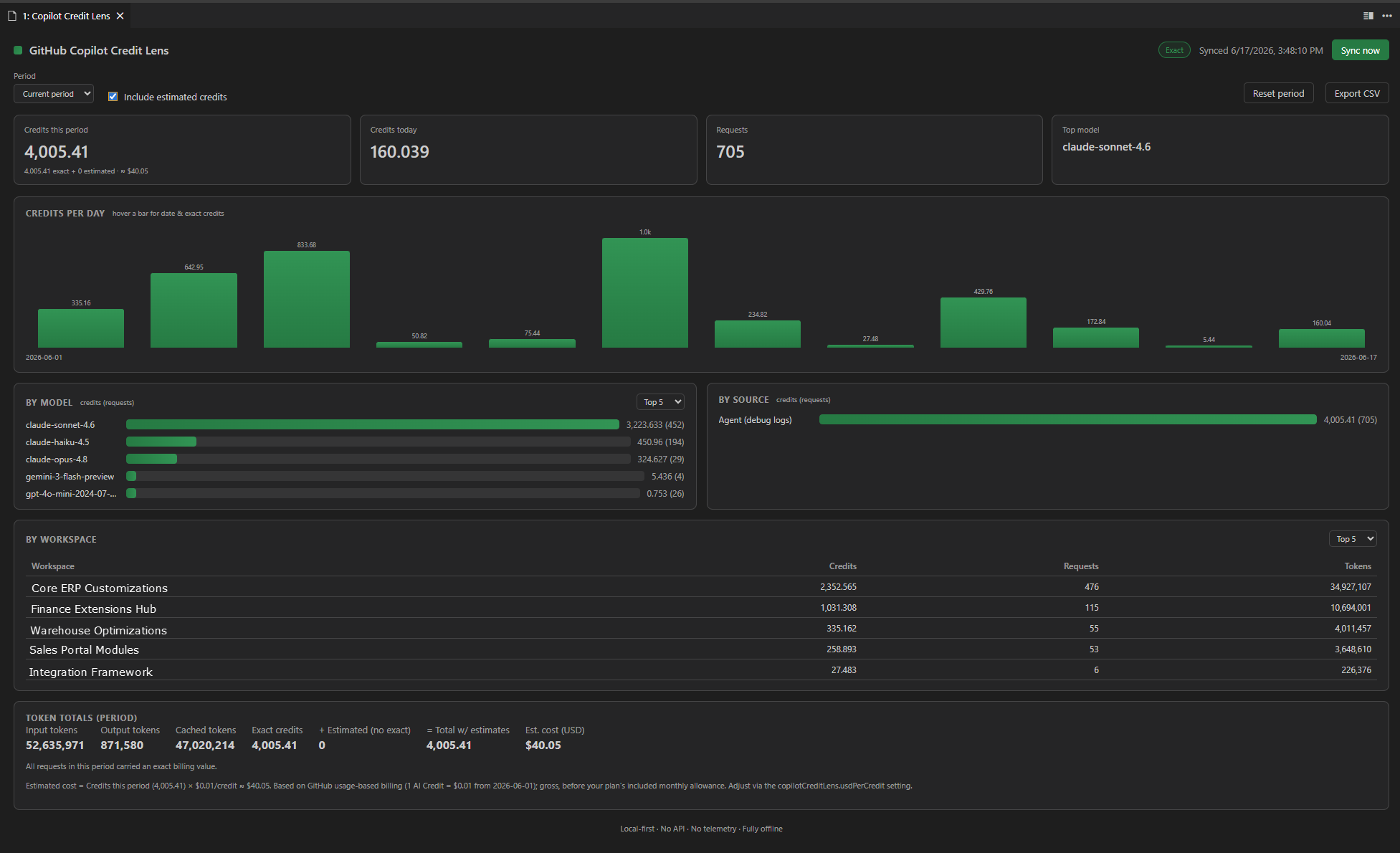
The dashboard contains:
- A KPI strip: credits for this period and for today, the request count, and your most-used model
- A daily credit trend chart, and bar charts per model and per source
- A trust chip that reads “Exact,” “Mixed,” or “Estimated,” and a switch between exact and estimated credits
- A workspace table with readable project names
- Period selection (current month, rolling 3 to 12 months, since the last reset, all time) and top 5, top 10, or all filters
- CSV export and JSON backup and restore
The “Reset Period” command sets a marker, so you can measure one project or one sprint from a chosen date.
Where the data comes from
The extension reads three local log sources: the VS Code Copilot Chat session logs, the Copilot CLI session logs, and the VS Code agent debug log. The last one is captured only if you enable "github.copilot.chat.agentDebugLog.fileLogging.enabled": true. Without it, credits from agent runs are estimated, and the dashboard marks them clearly.
The local total is a floor, not the full number
A local log cannot see everything Copilot bills you for. Coding Agent runs, PR code reviews requested from github.com, and usage from another editor or device never touch your disk. So the local total is a lower bound on your real bill. The dashboard is your own folder of receipts, and GitHub’s billing page is the bank statement.
The otherUsageBufferPercent setting turns that gap into a number you choose. Compare the dashboard’s total for a period with your real usage at github.com → Settings → Billing and licensing → Copilot usage, and set the percentage that closes the difference. The “Credits this period” KPI then leads with the calibrated total, tagged ≈ Assumed, with the verified local-only total right below it. Set the buffer to 0 to return to the confirmed local number.
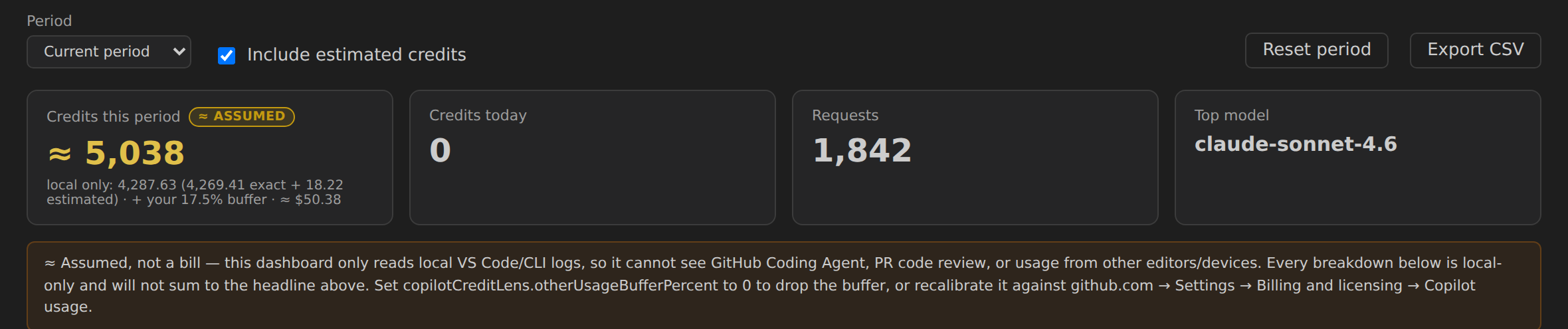
The setting lives in your VS Code settings.json:
{
  "copilotCreditLens.otherUsageBufferPercent": 17.5
}
The value is a percent, not a decimal, and it applies only to the KPI headline. Every other section stays local-only, so it always reconciles with your own logs.
What this is, and what it is not
The dashboard shows what a local log can tell you: a trend, a model mix, and a per-workspace split, offline and private. It is not a billing tool.
The billed figure lives in your account. For a personal account, open Settings → Billing → Premium request analytics at github.com/settings/billing. For an organization or enterprise, the GitHub REST API exposes it through the Copilot usage metrics and billing usage endpoints.
Installing it
You need VS Code 1.90 or later with GitHub Copilot Chat signed in. Download the .vsix file from the GitHub repository. It is not in the VS Code Marketplace. Install it from the Extensions panel (... menu → “Install from VSIX”), or run:
code --install-extension mb-gh-copilot-credit-lens-*.vsix
The Command Palette then lists “Open Dashboard”, “Sync Now”, “Reset Period (add marker)”, “Export Usage to CSV”, “Export Data Backup (JSON)”, and “Enable Copilot Agent Debug Logging”.
Beyond VS Code
The same ledger has two more entry points on the project’s GitHub Releases page. A command-line tool, ccl, renders the dashboard as text in a terminal with a live watch mode. Install it with npm i -g ./mb-gh-copilot-credit-lens-<version>.tgz. A GitHub Copilot CLI extension adds a /credits slash command to an interactive session. Both read the same local logs, with no network calls and no telemetry.
Privacy
Privacy was the design constraint from the start. The extension makes no network call and only reads the Copilot log files. Its ledger stores only metadata: timestamps, model names, credit counts, and workspace paths. No code, prompt, or secret leaves your machine.
Closing note
I built this extension to see where my own credits go without leaving VS Code. The repository is public, the code is small, and issues and pull requests are welcome.