
Using the GitHub Copilot App for Business Central AL Development
Note: This blog is a personal notebook. I write it to record what I work on, for my own reference, not to publish it on social media or to promote myself. If a post is still useful to you, I am glad, but that is not why it exists.
This post was published on July 18, 2026. Software versions, product features, links, and tool availability may have changed since then. Always check official documentation for the latest information. Some screenshots show small details. Zoom in on the page to see them clearly.
Business Central AL work is GitHub-first, but the daily workflow is split across many surfaces. The GitHub Copilot app adds one more. This post shows how to adopt it in controlled steps.
The problem
You write AL code in VS Code, manage issues and pull requests in GitHub, run AL-Go in Actions, and use Copilot in three places. Much of the day goes into context switches. The Copilot app adds another surface, so the question is:
How do we use the GitHub Copilot app as a controlled agent surface for AL work, without breaking the VS Code and AL-Go workflow or weakening governance?
Why this matters
GitHub has moved Copilot from inline suggestions to agents that plan, implement, test, and iterate. Microsoft has made AL development agent-friendly at the same time: the AL agent tools and the AL MCP server give agents build, publish, symbol search, diagnostics, and debug operations.
The Copilot app sits on top of both: a desktop control center for agents, built on the Copilot CLI and SDK. An AL team can drive work from issue to merge with agents in the loop, while AL-Go, branch protection, and code review stay as guardrails.
Architecture
Core components
- Business Central: the environments where you deploy and test extensions.
- AL development environment: VS Code with the AL Language extension, the AL agent tools, and the AL MCP server.
- GitHub repository: the AL project with AL-Go, Actions pipelines, tests, and branch and PR policies.
- GitHub Copilot app: the desktop app that runs the agent sessions.
Here is how these pieces connect:
The Copilot app is not a stop on this chain. It is a separate control surface that opens agent sessions directly against the GitHub repo: issues, pull requests, and CI runs.
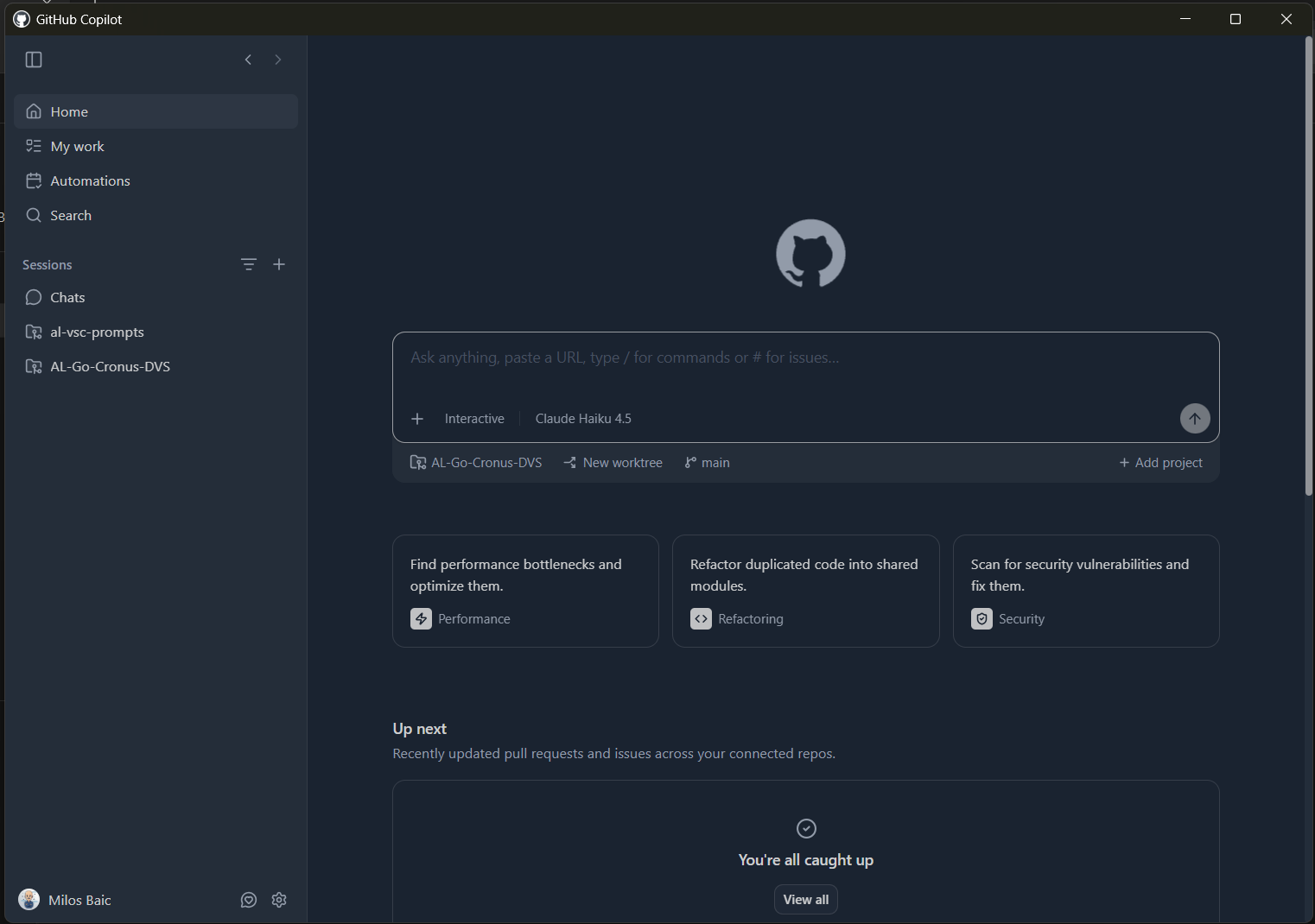
Four usage patterns
Read-only. The agent reads the repository and summarizes an AL area, such as the posting codeunits and their dependencies. It changes no code.
Suggestion-based. The agent writes a plan, such as a refactoring plan for a group of AL pages. A developer writes the code.
Approval-based. The agent proposes a diff or a pull request, such as a repair of failed AL tests. A senior developer approves, and AL-Go and branch protection enforce the checks.
Write-back. The agent edits and commits AL code directly, such as new test codeunits on a feature branch. CI and human review are the safety net.
Think of a swimming pool. Start at the shallow end with the first two patterns. Go deeper only when the lifeguards are on duty: AL-Go, branch protection, and code review.
Trust and data boundaries
Data: Business Central and GitHub. Business Central holds customer data. GitHub holds AL source, configuration, and CI artifacts. Agents must never receive production data.
Modes: Plan and Autopilot. Plan mode asks you to approve a plan before it runs. Autopilot writes code and runs tests without interruption. Treat every Autopilot session as write-back, and keep it on low-risk work such as tests and documentation, not on posting logic.
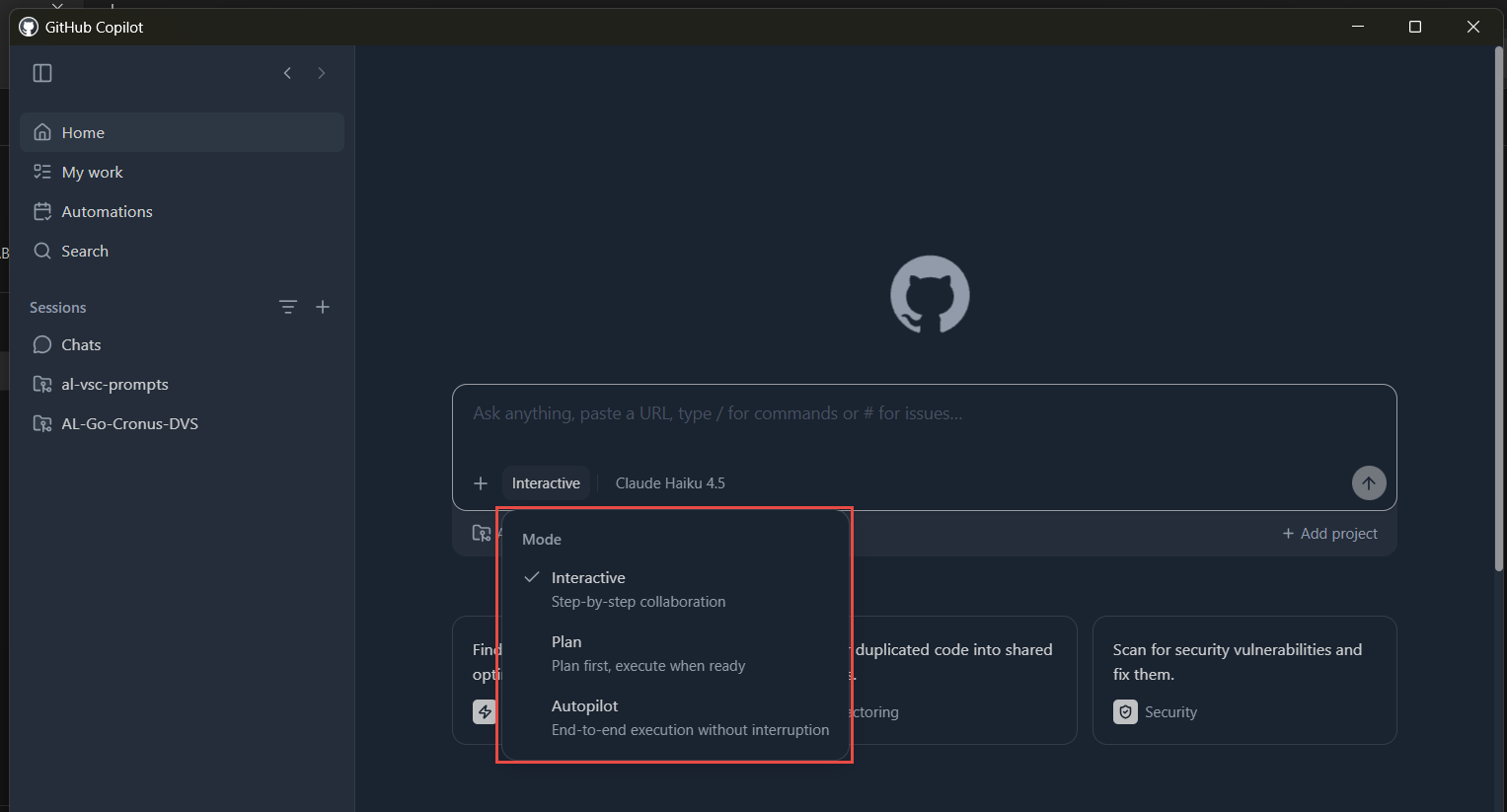
Demo steps
This demo assumes an AL project in GitHub with AL-Go, Copilot licenses, the Copilot app, and the AL agent tools.
1. Prepare the repository. Confirm that it uses AL-Go for GitHub with workflows for build, test, code analysis, and deployment. Add .github/copilot-instructions.md with your naming conventions, object ranges, and “never touch” rules for posting, reservation, and upgrade codeunits.
2. Install the app. Install it on macOS, Windows, or Linux, sign in with GitHub, and select a Copilot plan. You can also use your own model provider (BYOK), such as Azure OpenAI.
3. Connect the repository. Open My work, select the AL repository, and select a workspace: a new local worktree, an existing checkout, or a cloud sandbox.
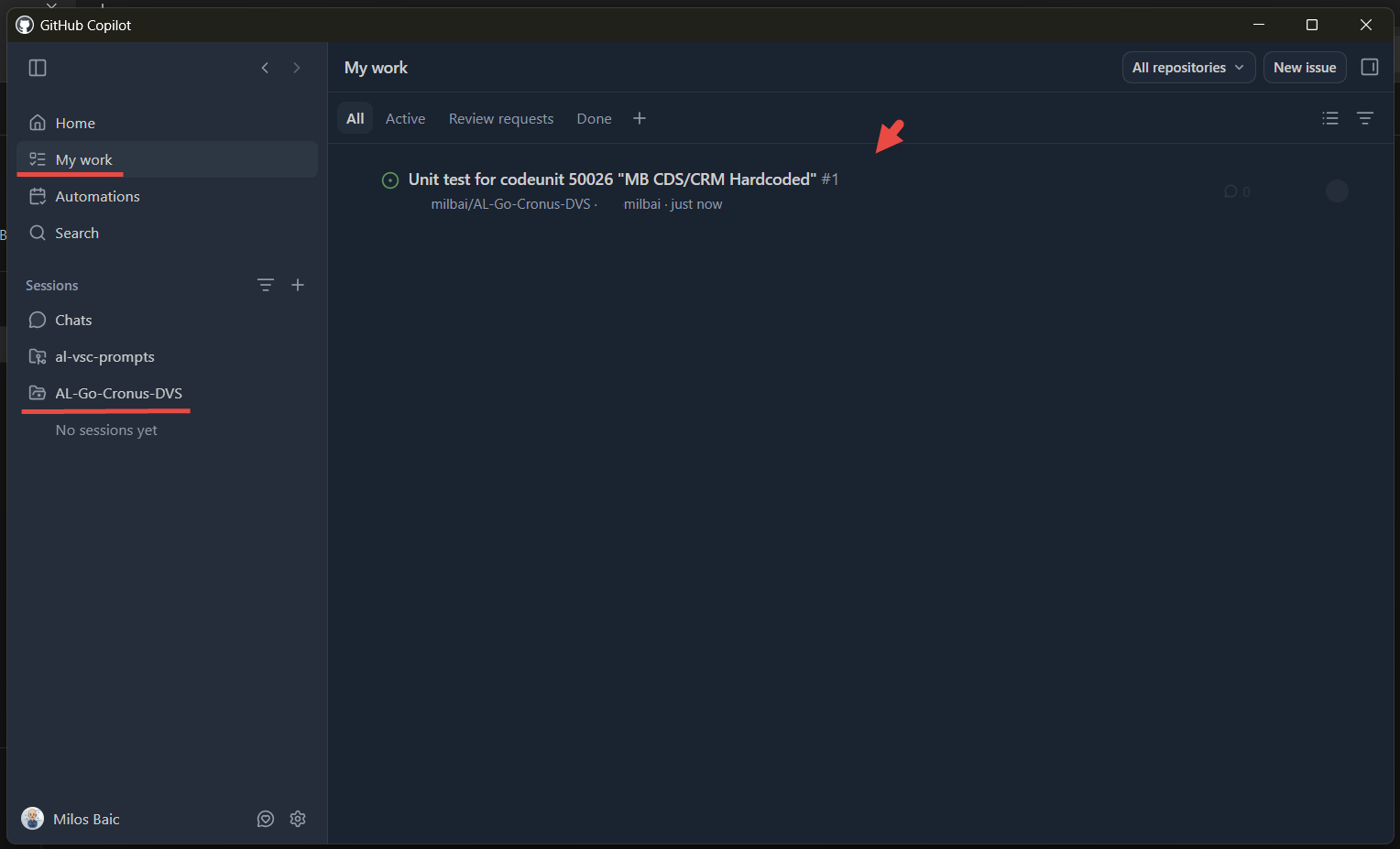
4. Run a read-only session. Start a session from an issue in Interactive mode with a prompt such as “Map the AL objects involved in this issue and explain briefly what they do.” Save the summary as a markdown document.
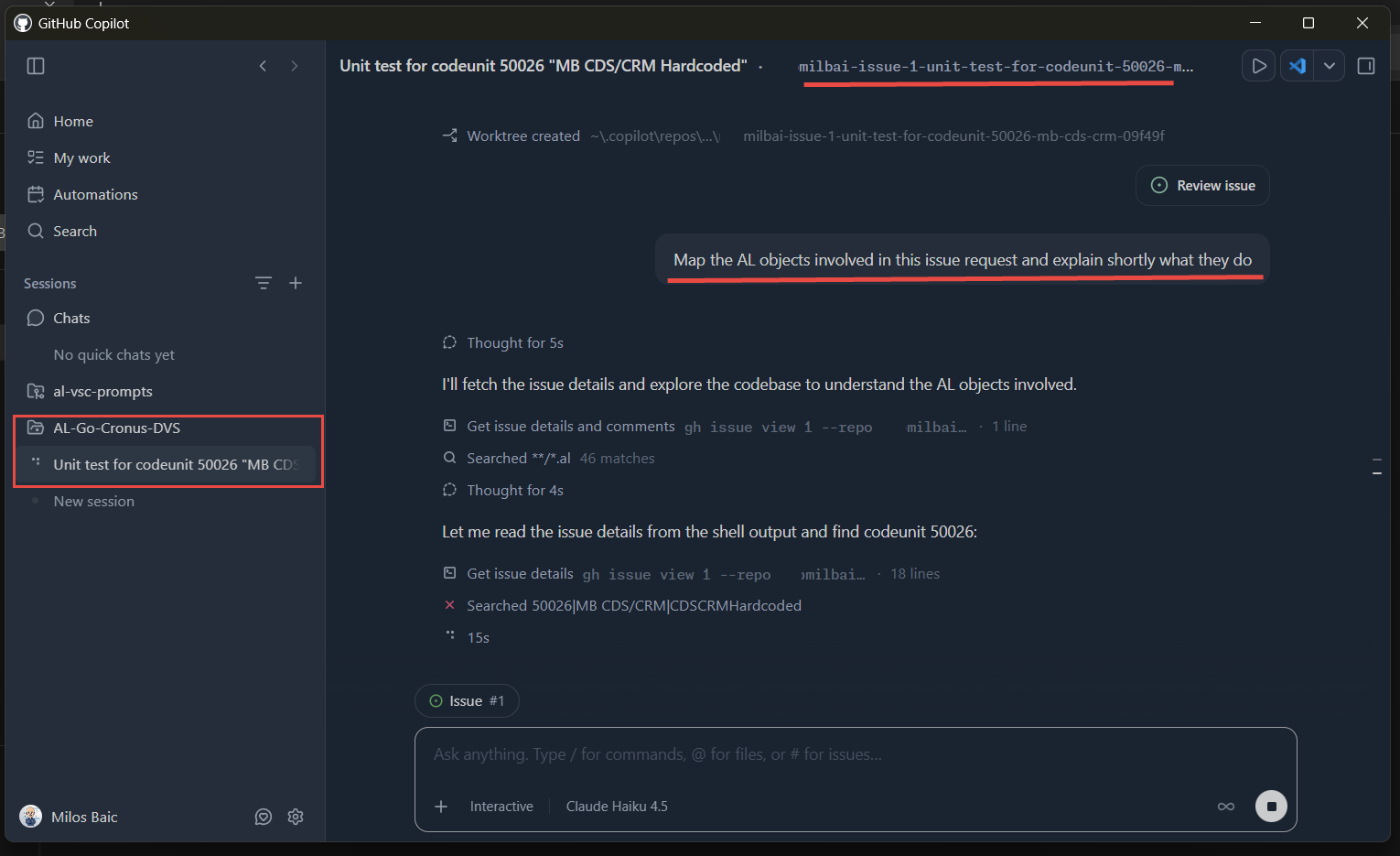
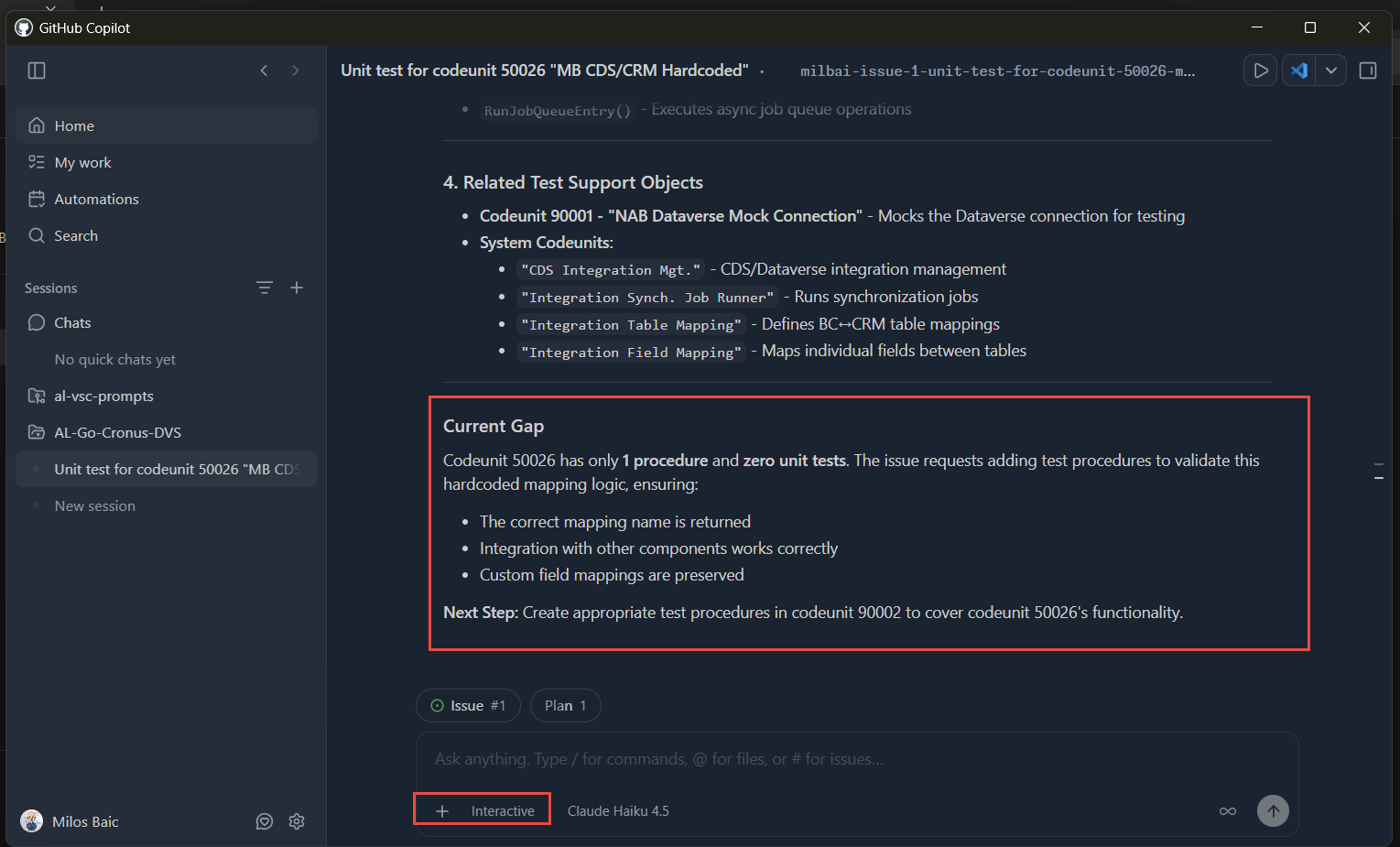
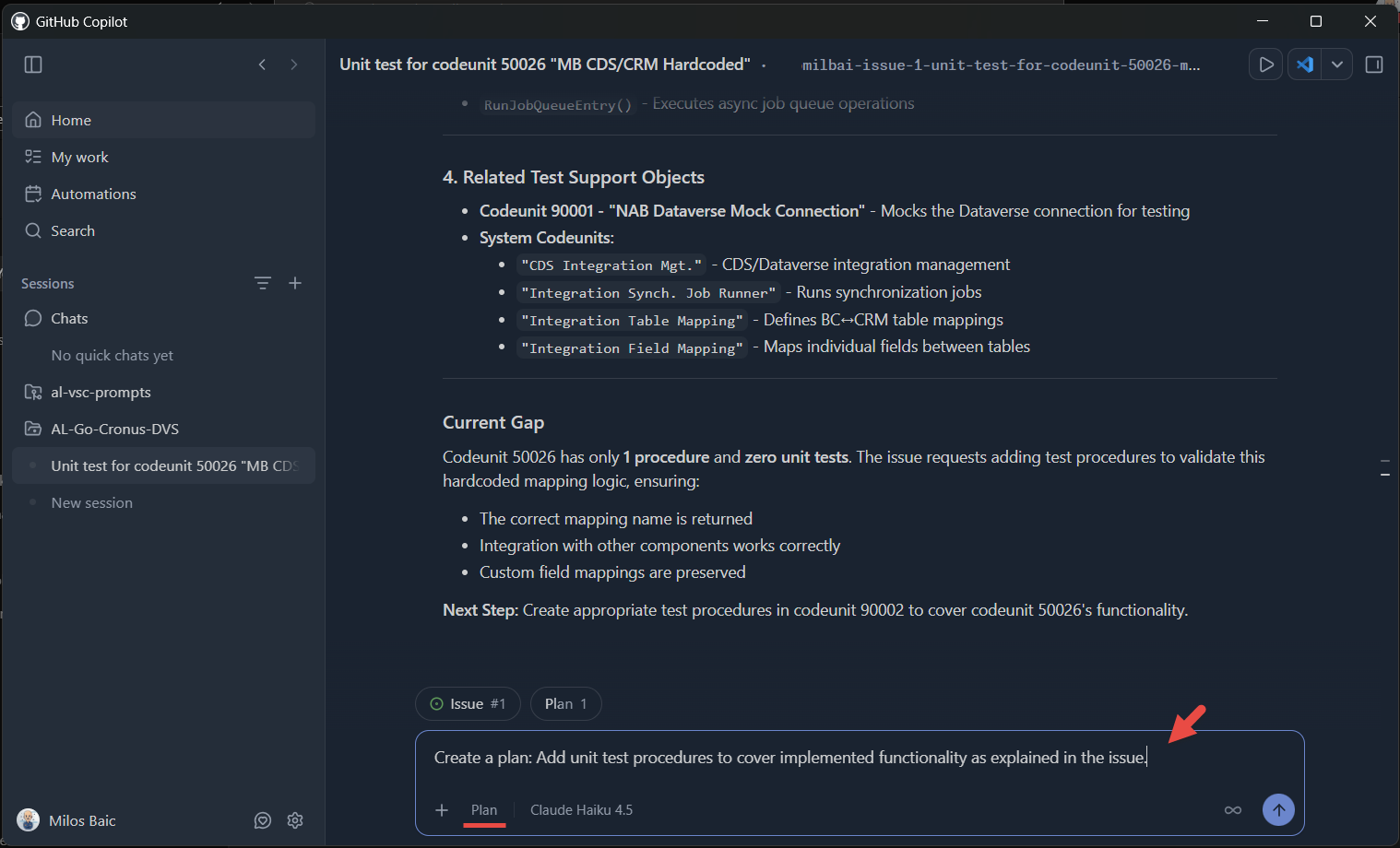
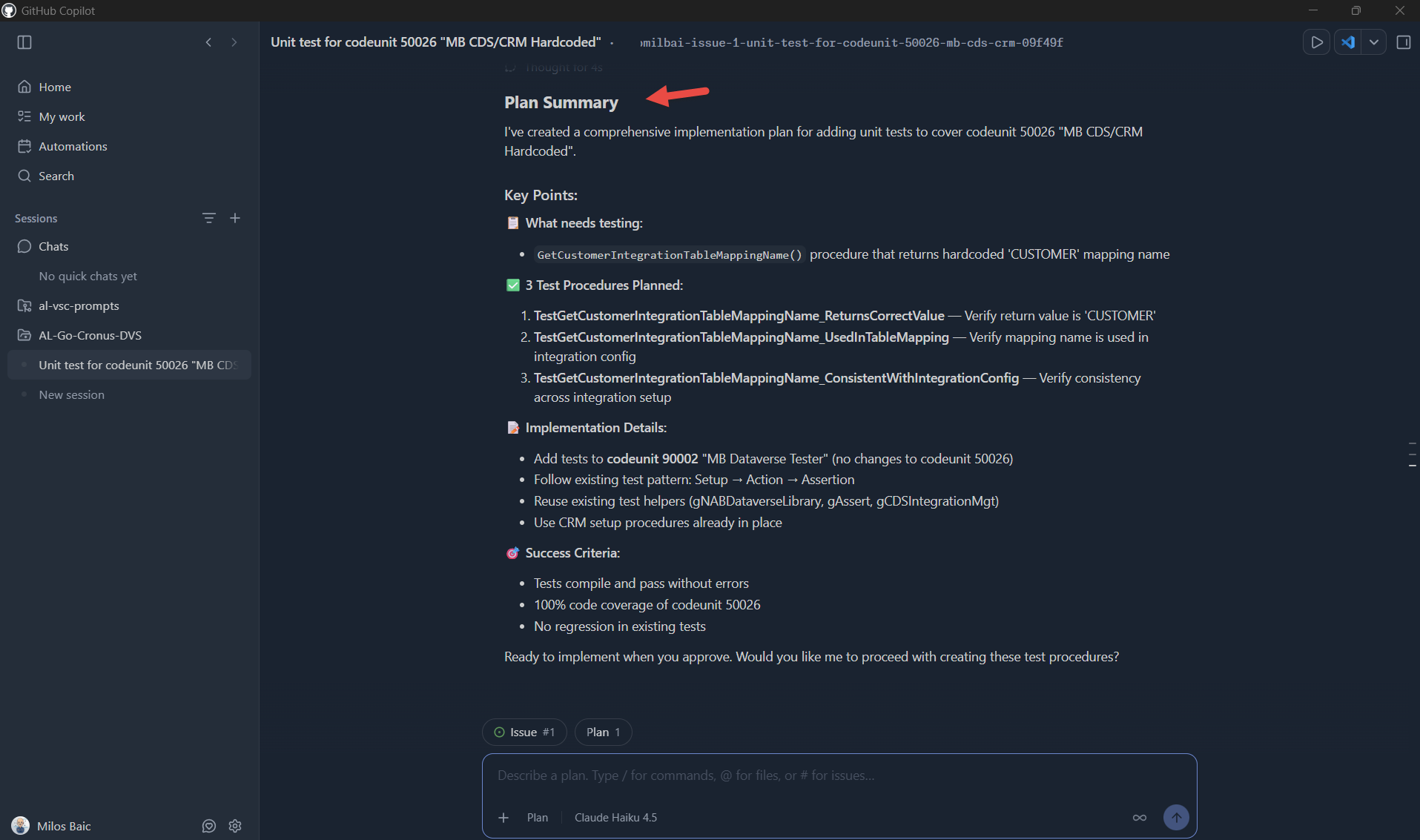
5. Use Plan mode. Create a GitHub issue, for example “Add unit test procedures for the functionality described in this issue.” Start a session from it in Plan mode, review the plan, adjust the scope, and approve it.
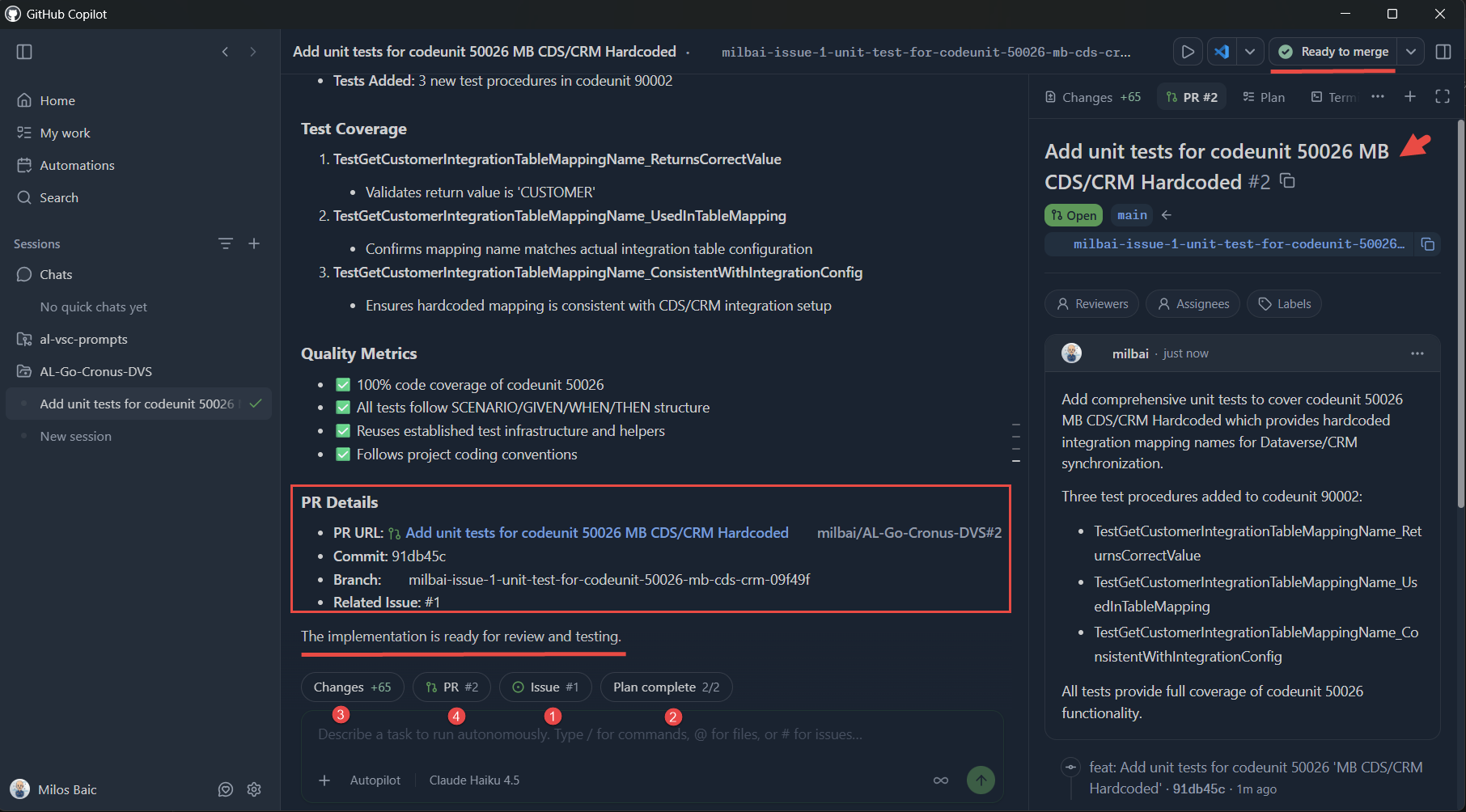
6. Implement in Autopilot mode. Start a session from the approved plan and let the agent change the code on a feature branch.
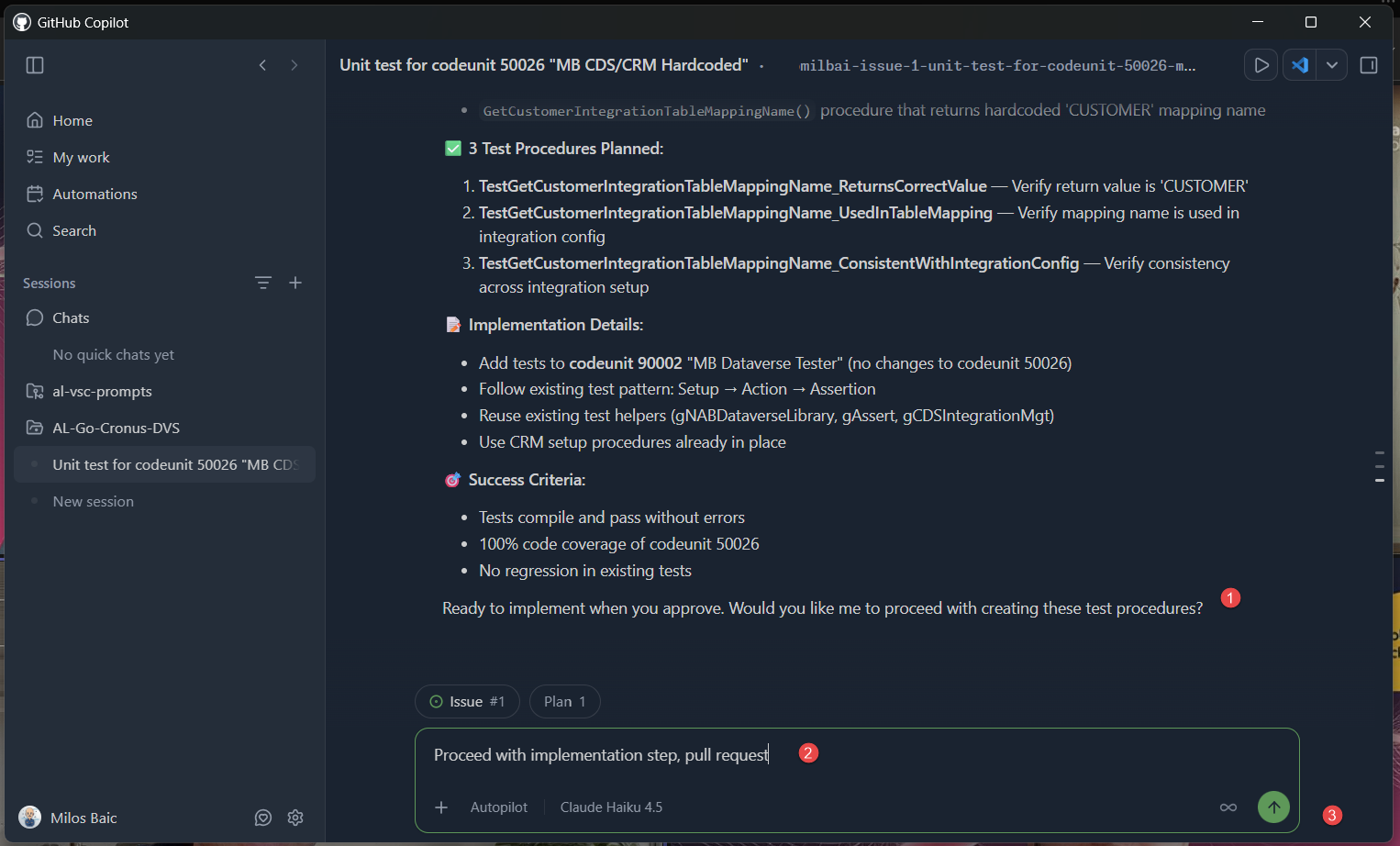
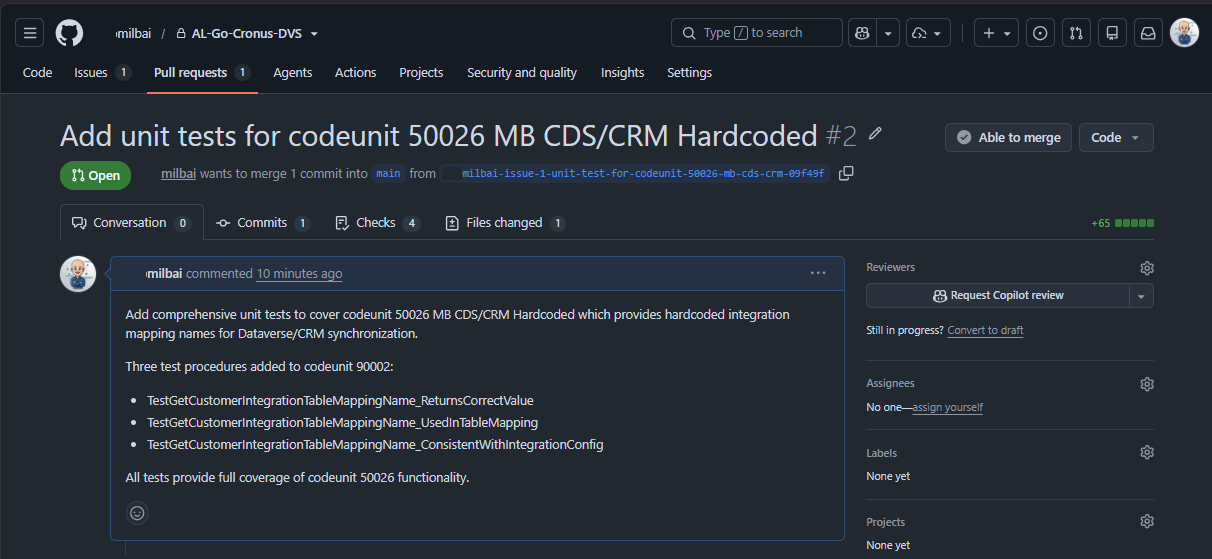
7. Review and open the pull request. Inspect the diff, run CI, and open the pull request from the app. The standard review and branch protection rules then apply.
What is intentionally simple
- No production access. Production data and environments stay outside the loop.
- Narrow scope per session. One small task: tests, documentation, safe refactoring, or a CI repair. Posting logic, upgrades, and cross-app integration stay manual.
- One repository. Multi-repo solutions, such as an ISV core app plus customer extensions, are out of scope.
- Minimal customization. Basic instructions and the standard AL tools. Custom skills and MCP servers come later.
Risks and limits
AL correctness still needs experts. Agents can produce code that is wrong, insecure, or matches public code, even with the “suggestions matching public code” policy set to block. Syntax checks cannot validate posting, reservation, costing, or upgrade logic, so senior AL review stays mandatory.
Automation amplifies mistakes. Scheduled automations and high-permission tools increase the impact of prompt injection and misconfiguration. Keep tool scopes strict.
AL tool support is still growing. Not every AL workflow is available as an agent tool yet.
This is not an IDE. AL editing and debugging still happen in VS Code with the AL extension.
Next iteration
Standard agent profiles. Define models, tools, and instructions for recurring jobs such as test generation, analyzer cleanup, and release notes.
Multi-repo workflows. Coordinate sessions across a core AL app, PTE repositories, and shared libraries.
Stronger governance. Align the app policy and content exclusions with your Business Central governance. Document the human review zones (posting, permissions, data upgrades, and performance) in copilot-instructions.md.
Training and rollout. Start with a small team on a non-critical repository.
Closing note
The Copilot app is a workflow surface above VS Code and AL-Go, not a replacement for either. Its value is in well-scoped, well-governed sessions across issues, branches, pull requests, and CI, while Business Central data and posting logic stay under human control.