
Business Central MCP Server: Introduction and Configuration
Note: This blog is a personal notebook. I write it to record what I work on, for my own reference, not to publish it on social media or to promote myself. If a post is still useful to you, I am glad, but that is not why it exists.
This post was published on April 20, 2026. Software versions, product features, links, and tool availability may have changed since then. Always check official documentation for the latest information. Some screenshots show small details. Zoom in on the page to see them clearly.
Business Central now has its own MCP server. MCP (Model Context Protocol) is an open standard that lets AI tools talk to systems like Business Central in a consistent way. This post shows how to connect a host and how to control what an agent can see and change.
Problem
Business Central holds real business data: sales orders, customers, items, and finance records. AI agents want that data, but unmanaged access is risky: an agent could read data it should not see, or change data by accident.
Before MCP, most integrations used fixed APIs and fixed logic. That suits repeated tasks, but not open questions like “which orders are late this week.”
Why this matters
The Business Central MCP Server reuses the existing API security model and invents no new permission system. Three things follow: less effort to connect an agent, the authentication and permission rules your team already knows, and a named, reviewable configuration instead of an open door.
Microsoft announced the server at Directions EMEA in October 2025, with a public preview in Business Central version 27.1.
Architecture
Three roles make up an MCP setup:
- Host. The application that runs the AI agent, such as Copilot Studio or Visual Studio Code.
- Client. The part of the host that handles the MCP connection.
- Server. The toolbox for one system. Business Central, Dataverse, and Finance and Operations each have one.
The server runs on the standard Business Central API layer. It exposes API pages and their bound actions as MCP tools, with the same authentication and permissions as a normal API call.
A Dynamic Tool Mode setting on the MCP configuration controls how the tools appear.
With it off, the server generates one tool per allowed operation, named in a fixed pattern such as List<object_name>_PAG<ID>. The agent maker selects from that list.
With it on, the server presents three standard tools instead, and the agent finds the real tools at run time:
bc_actions_search. Find a tool that matches the task.bc_actions_describe. Read the details of a tool, such as its fields and filters.bc_actions_invoke. Call the tool and get a result.
This helps when the tool list is large. Copilot Studio handles at most 128 tools per agent (check the current limit), and Microsoft recommends 25 to 30. Each allowed operation counts as one tool, so a full API surface passes that range quickly.
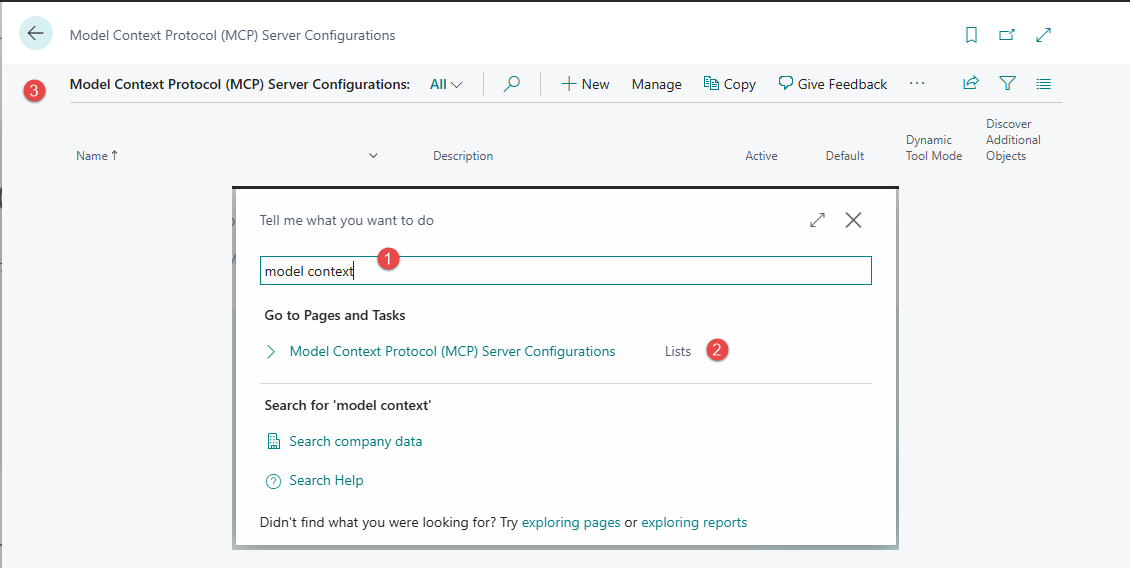
The default configuration is read-only: all API pages for read, with no create, update, or delete. To allow writes or to limit the pages, create a named MCP configuration in Business Central. It lists the tools, sets read or write access per tool, and must be marked active.
The enhanced 2026 server also runs behind a dedicated endpoint, mcp.businesscentral.dynamics.com, with OAuth 2.1, preauthorized access from Visual Studio Code and Copilot Studio, and registered access for other MCP clients through Microsoft Entra ID.
One rule applies: an MCP agent is a user with tools, not a trusted system integration. Design the tool surface like permissions for a new employee.
MCP Server Configurations page in Business Central.
Demo steps - Business Central
You can test the default read-only setup in about one minute.
- Prerequisites. A Business Central environment and access to Copilot Studio.
-
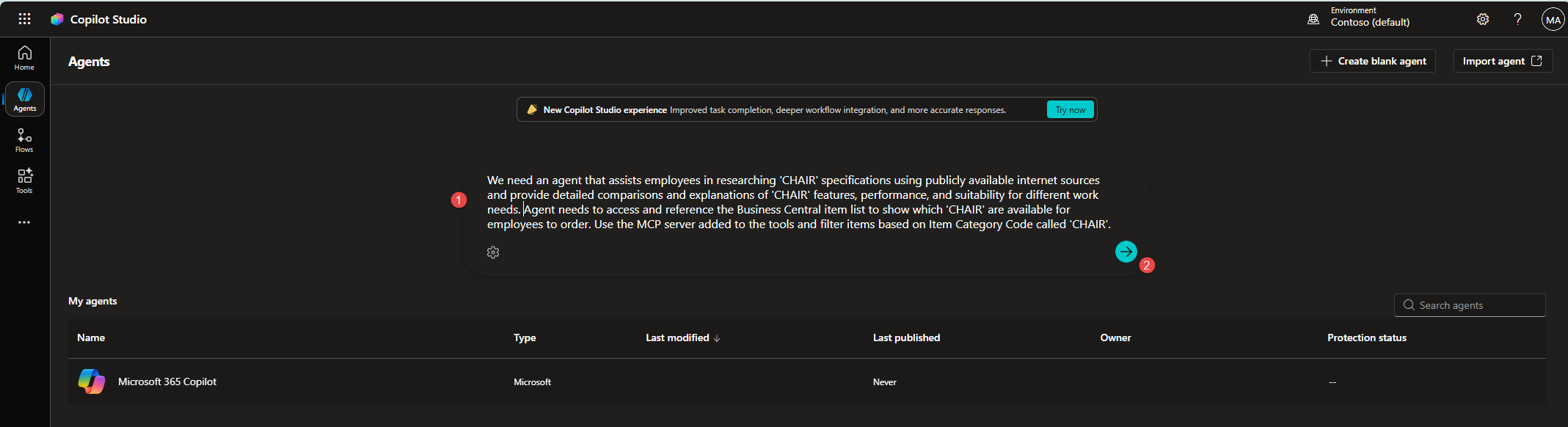
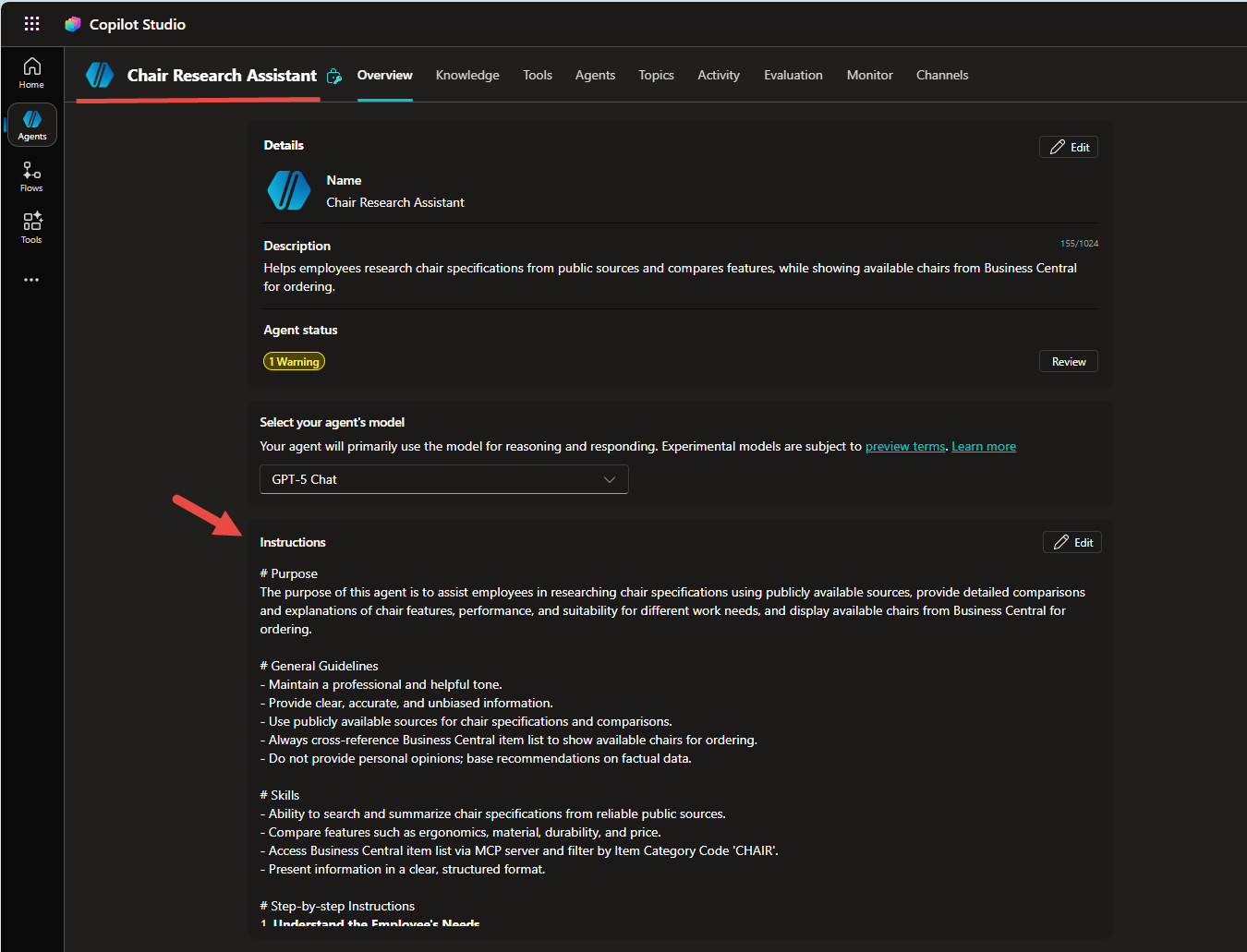
Create the agent. In Copilot Studio, create an agent, add a short description, and pick a model.
New agent creation screen in Copilot Studio.
-
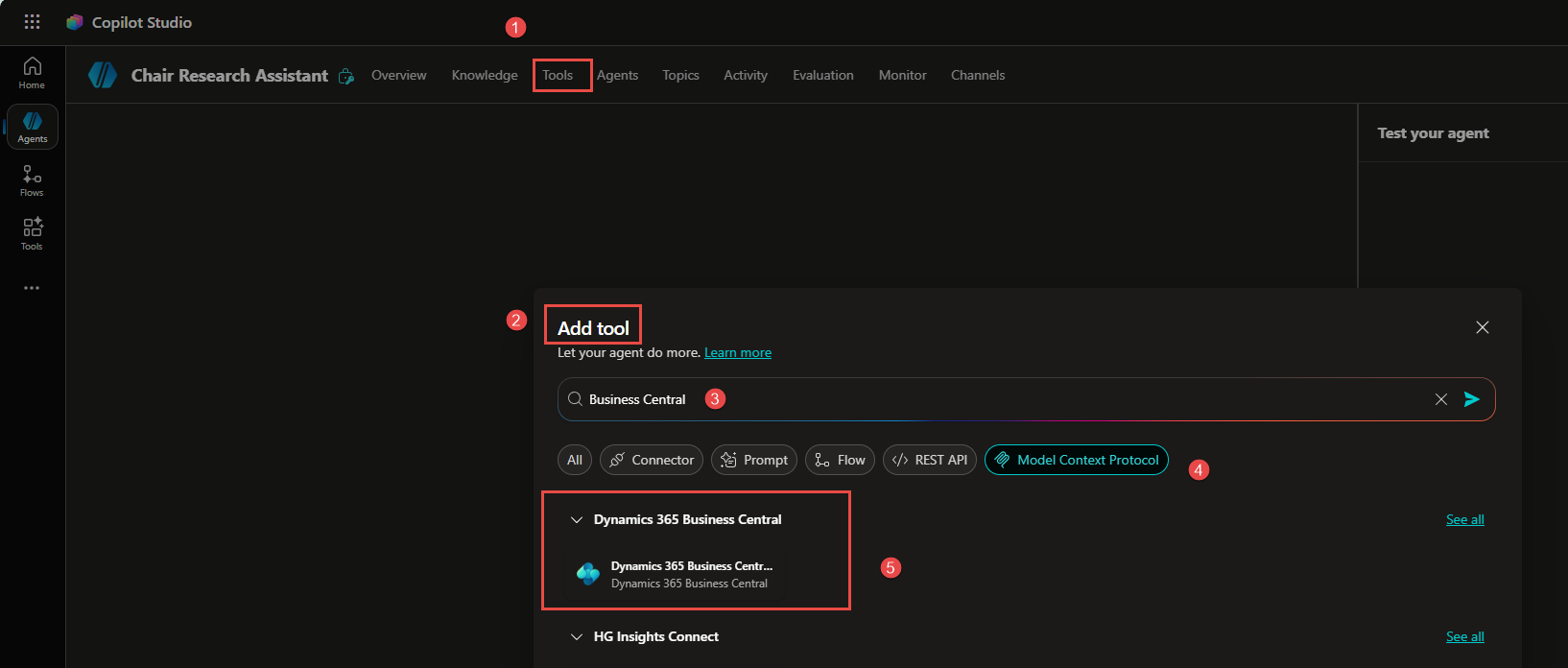
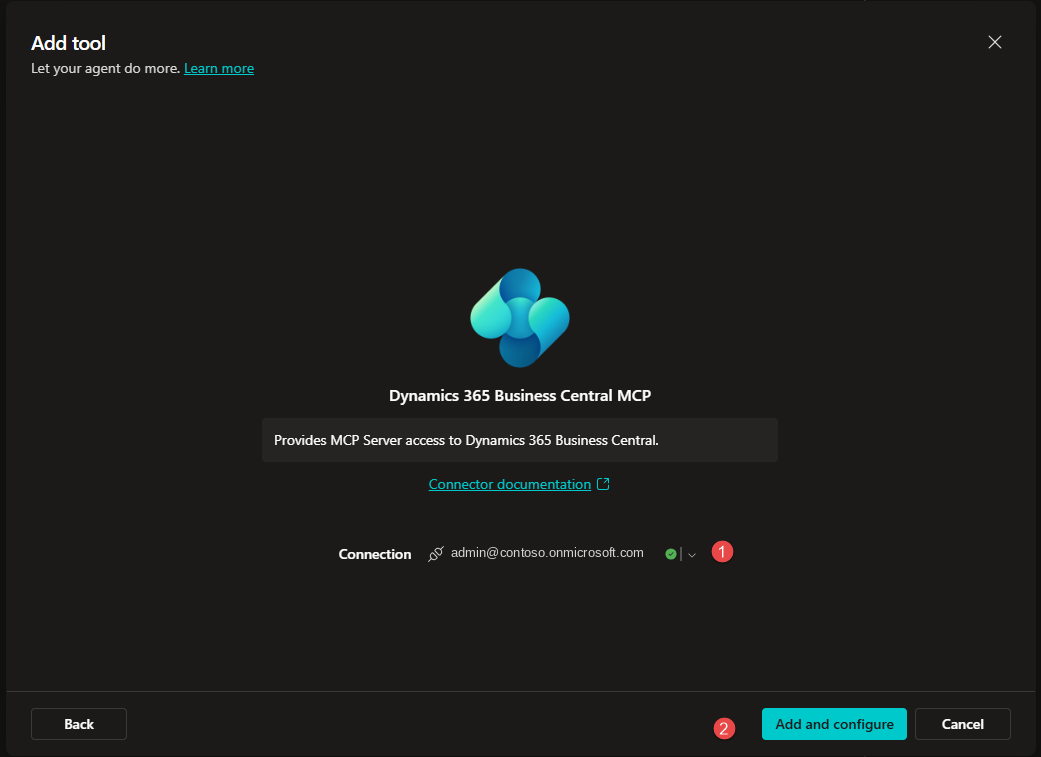
Add the MCP tool. Add a Model Context Protocol tool, search for Business Central, select the Business Central MCP server preview, and choose Add and configure.
Tool search results in Copilot Studio.
-
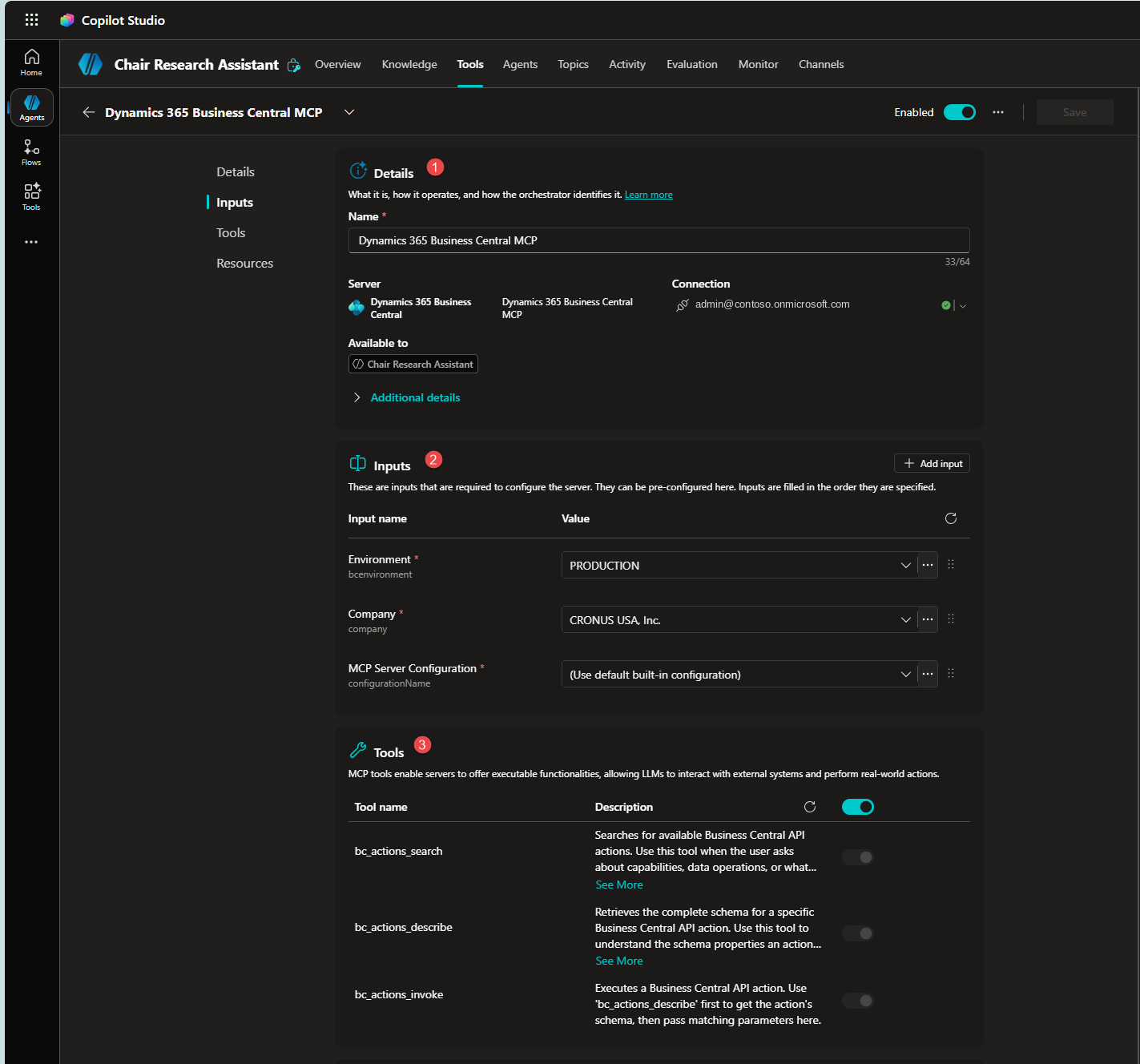
Set the connection. Select the environment and the company. Leave the configuration field blank for the default, read-only setup.
MCP connector configuration pane.
-
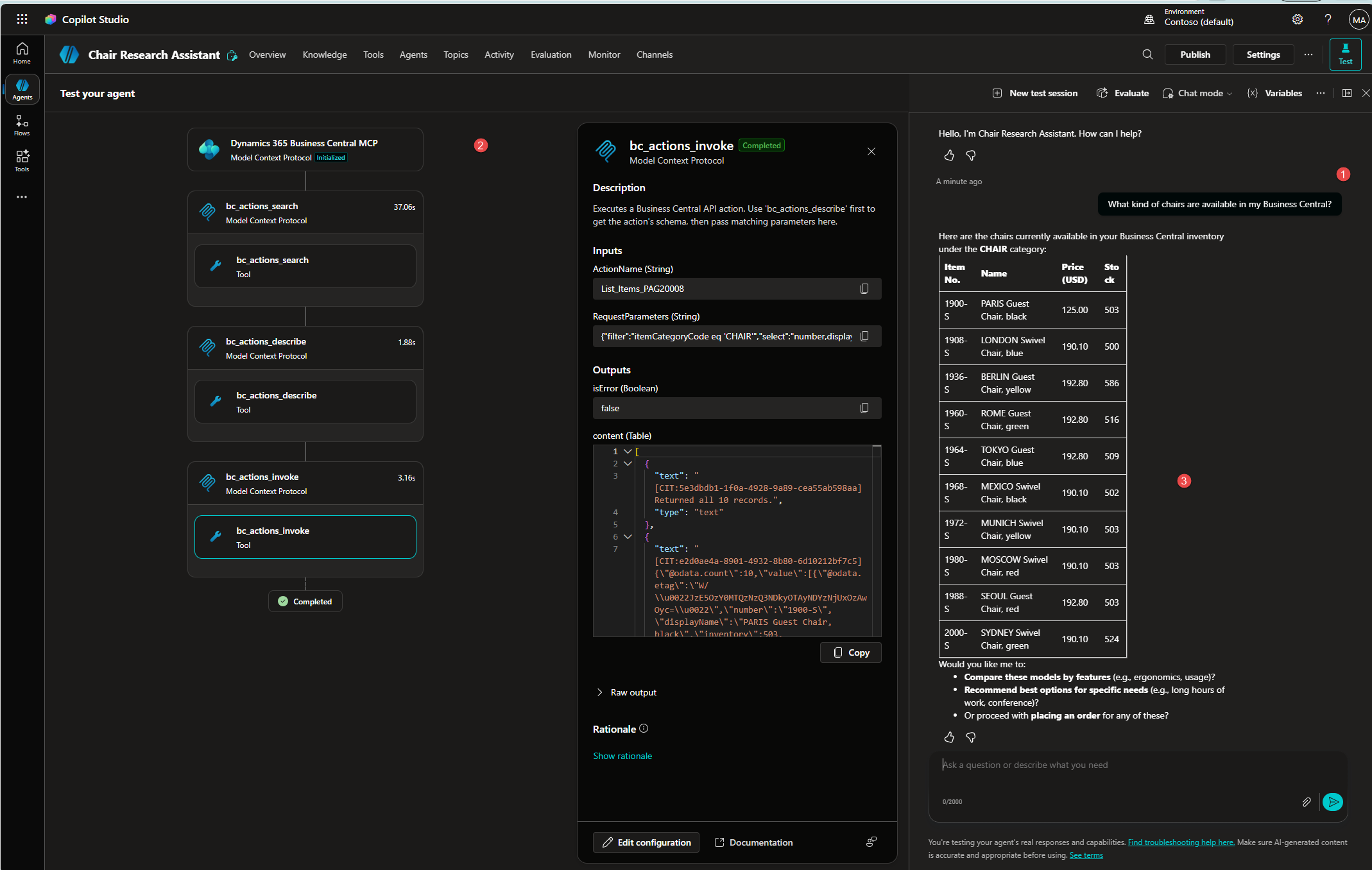
Run and verify. Save the connection, start a session, and sign in. Ask “Do we have customers in Florida?” The agent should find the customer list, search for state code FL, and answer.
Test chat session with the agent.
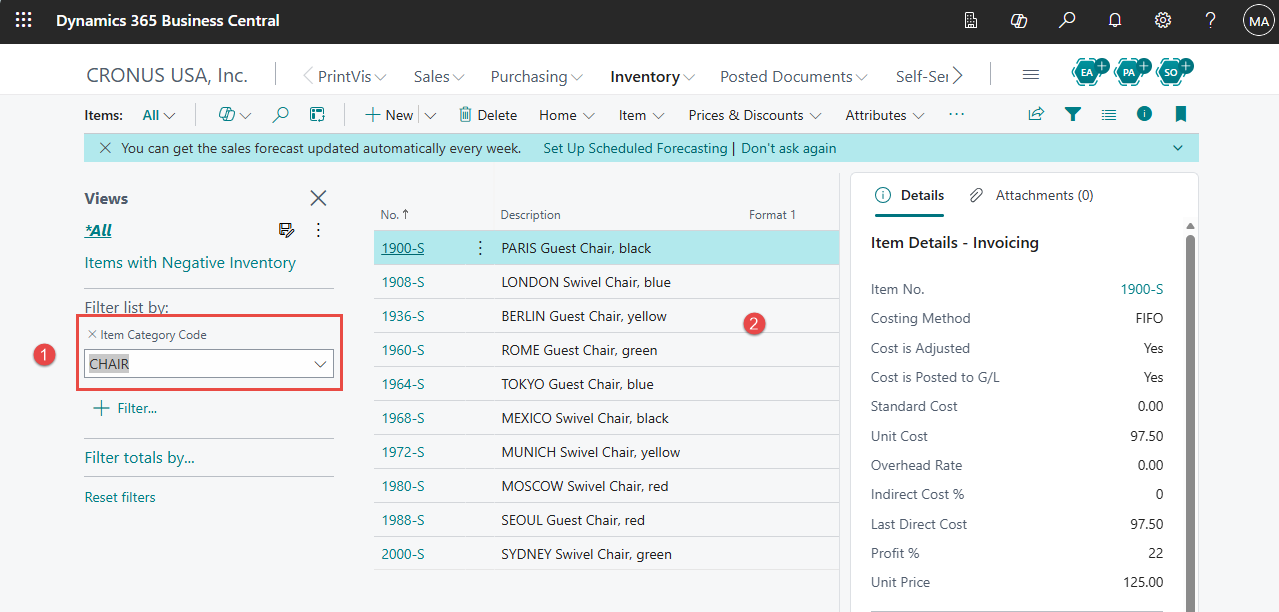
The same data in the Business Central client, filtered by hand for comparison.
For a write scenario, select a named, active MCP configuration in the Copilot Studio connector. A later post covers that.
What is intentionally simple
- One agent, one environment, one company.
- Default configuration only: no custom tool list, bound actions, or custom API pages.
- No monitoring, write approval workflow, licensing, or Copilot Credit cost.
Risks/limits
- The server launched in preview, and behavior can change before general availability.
- The default configuration exposes all API pages for reading, which can be more than a use case needs.
- The server supports only top-level API pages. ListPart and CardPart API pages and API queries do not work as MCP tools, so build a top-level API page for that data.
- Dynamic tool discovery gives the model more choice, and more room for mistakes.
- Bound actions run real business logic, so treat them as higher risk than plain reads or writes.
- Not covered here: Microsoft Purview audit logging, configuration validation, and JSON export and import in the enhanced 2026 server.
Next iteration
- Build a named, read-only configuration scoped to one or two API pages.
- Add one write-enabled tool for one clear business task, with human review.
- Write clear “about text” for each custom API page. The agent uses it to choose a tool.
- Compare Dynamic Tool Mode with the static tool list for your use case.
- Check the Microsoft Learn guidance on MCP server configuration for current capabilities.
Closing note
Good API design discipline makes the Business Central MCP Server work. A well-described API page becomes a well-used AI tool, and a vague one becomes a source of agent mistakes. Start read-only, name your configurations clearly, and add write access one task at a time.