
Code Interpreter in Copilot Studio: What It Does for Business Central Data
Note: This blog is a personal notebook. I write it to record what I work on, for my own reference, not to publish it on social media or to promote myself. If a post is still useful to you, I am glad, but that is not why it exists.
This post was published on April 28, 2026. Software versions, product features, links, and tool availability may have changed since then. Always check official documentation for the latest information. Some screenshots show small details. Zoom in on the page to see them clearly.
Code Interpreter in Microsoft Copilot Studio runs Python code inside an agent. It reached general availability in September 2025. This post covers what it does with Business Central data, and its limits.
Problem
Consultants often export Business Central data to Excel or CSV, then build a chart by hand or a Power BI report for one small task. Users want to ask a question about a file and get a chart back in the same chat. Standard agents do not do this.
Why this matters
With Code Interpreter on, the agent writes and runs Python on demand: it reads an uploaded file, computes a result, and returns a chart or a table in the chat. This suits ad-hoc checks on exported data, such as G/L entries or item ledger entries.
Architecture
Code Interpreter runs in two places.
At the agent level, a maker turns it on under Settings, Generative AI, File processing capabilities. Python code then runs live, once per user turn.
In a single Prompt tool, the maker writes and tests the code at design time, and the same code runs each time. This fits a fixed task, such as filling one Excel template.
The code runs in a Microsoft-hosted sandbox: a temporary analyst in a locked room that is cleared after every session. It keeps no state and reaches no other system.
Code Interpreter does not write to Business Central directly, and a Prompt with code interpreter cannot be called as a tool from a Topic. For write-back, the documented method is a Power Automate or Agent Flow step between the Prompt and a target such as Dataverse or a Business Central connector.
| Mode | Set up in | Runs |
|---|---|---|
| Agent-level | Agent Settings | Every turn, every topic |
| Prompt-level | One Prompt tool | Fixed code, on each prompt run |
Demo steps
-
Turn on Code Interpreter at the tenant level in the Power Platform admin center.
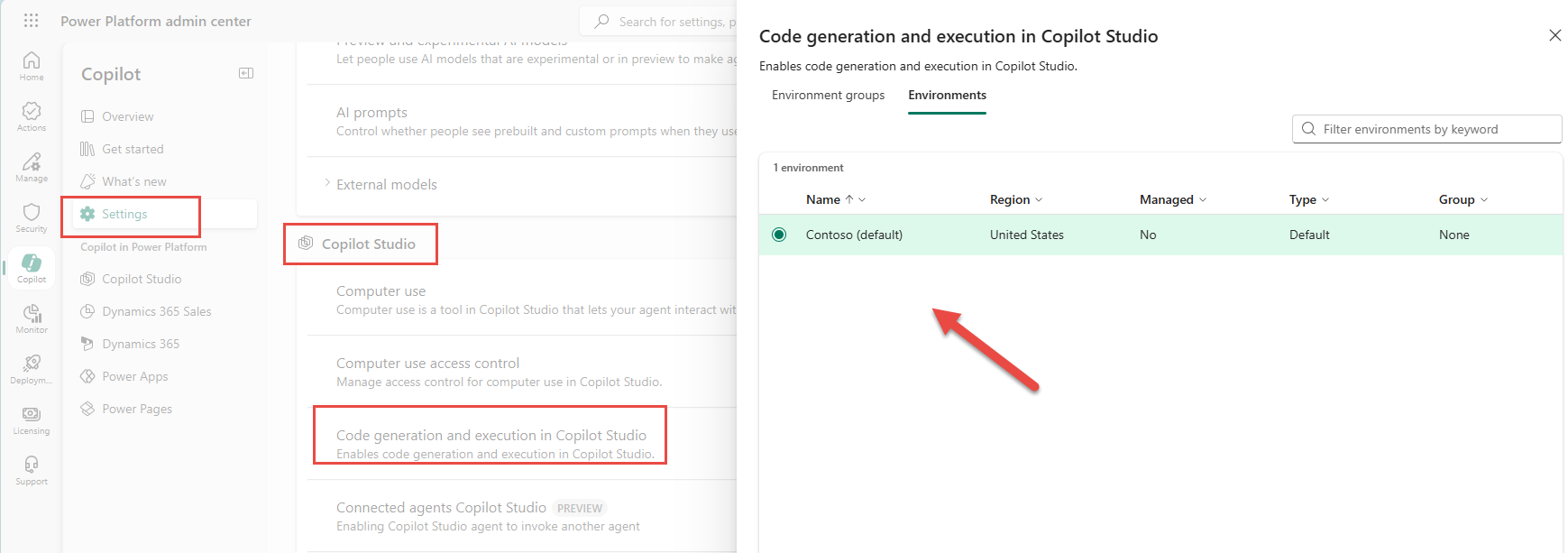
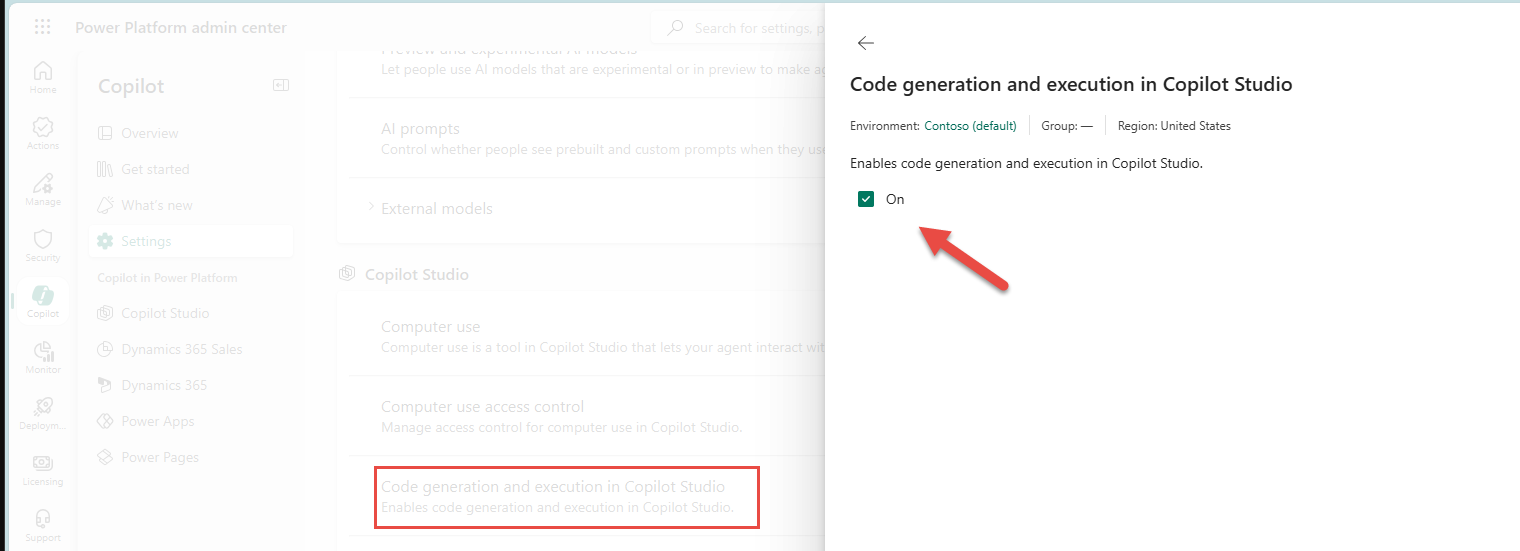
-
In a Copilot Studio agent, turn on File uploads and Code interpreter under Generative AI settings.
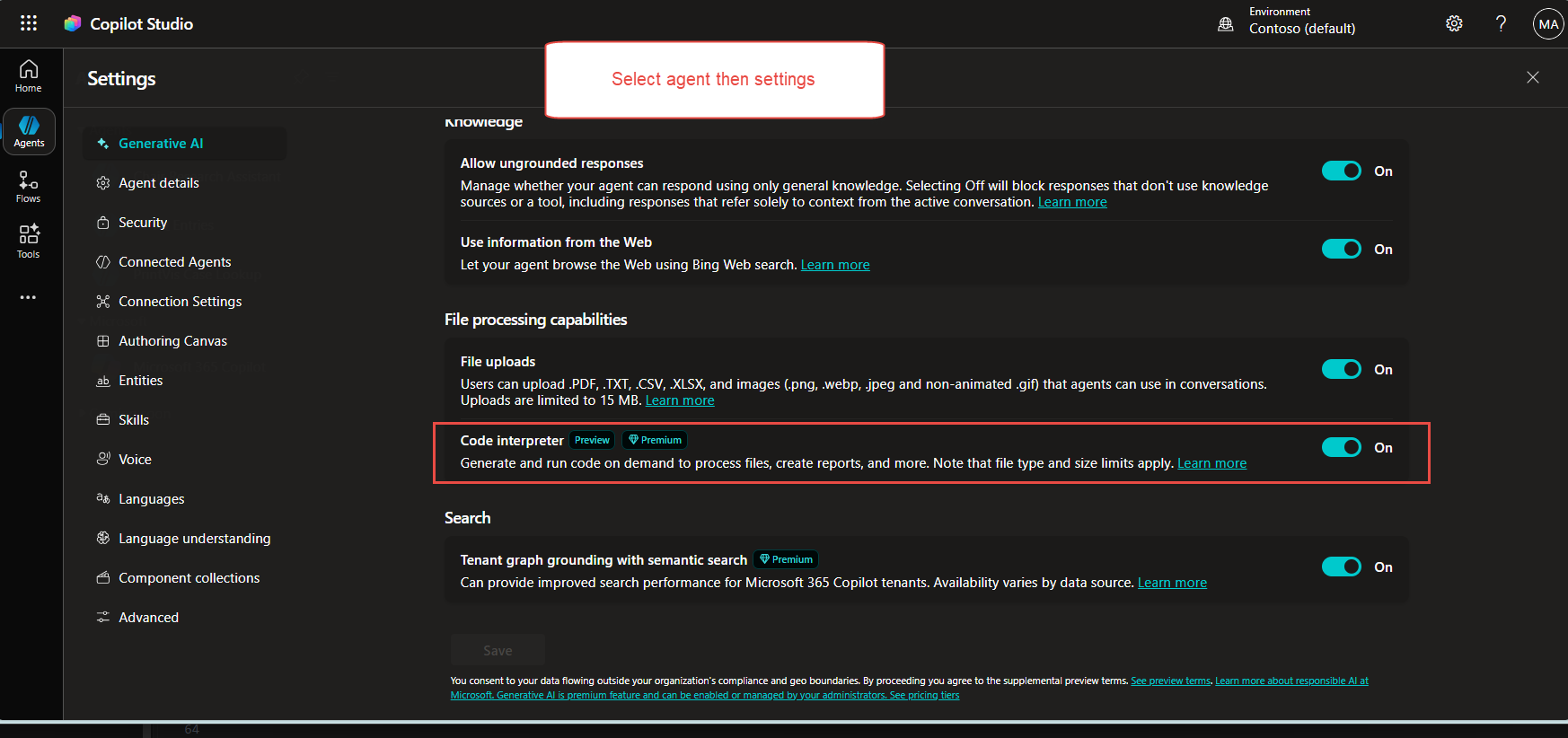
- Start a test chat. Upload a small CSV file, such as a G/L entry export, or ask for data through an enabled MCP server.
- Ask for a total by account or a bar chart of the values.
-
Check the reply: a table or an image generated from your data.
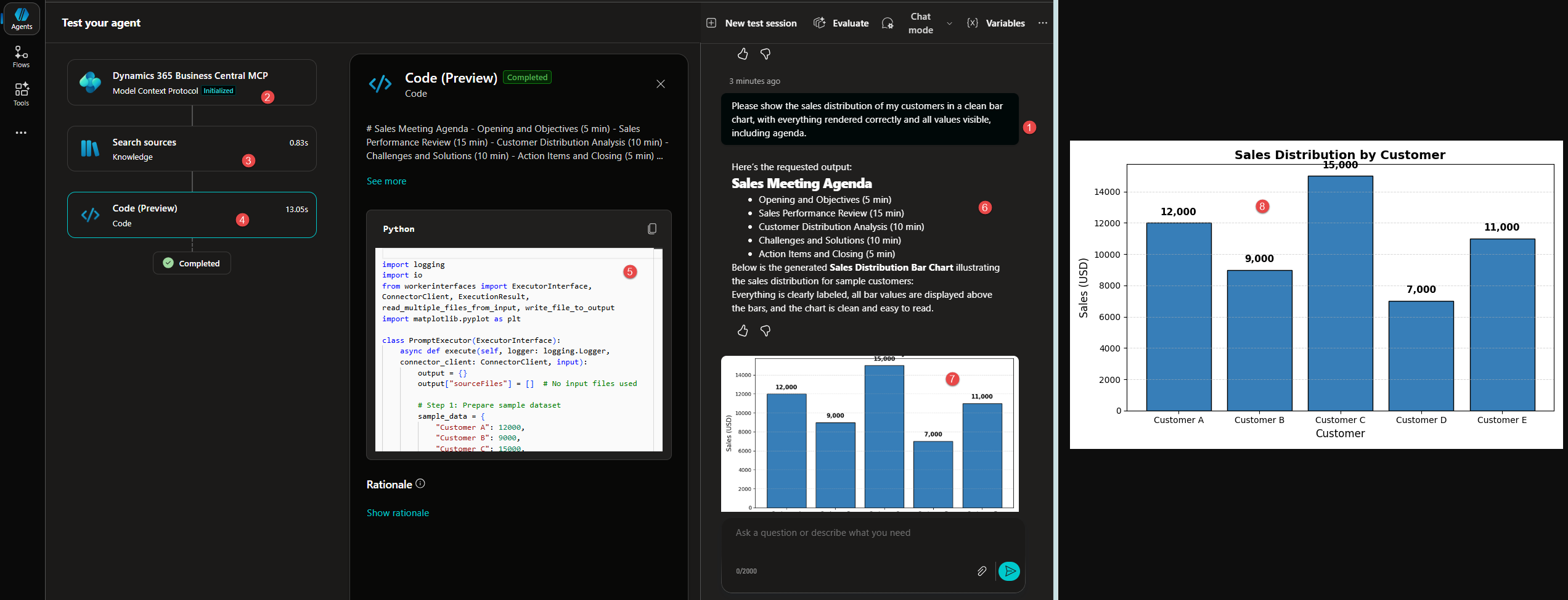
What is intentionally simple
- One small CSV file or BC data via MCP, tested by hand.
- No write-back, Power Automate flow, production data, DLP, or compliance review.
Risks/limits
- One prompt call cannot read multiple files or return more than one output file.
- Sovereign clouds, such as GCC and GCC High, are not supported yet.
- Long tasks can time out, so split large files.
- Scanned PDF files and files with sensitivity labels cannot be read.
- Community reports describe unstable behavior when a Prompt with code interpreter runs inside a full agent.
- Each use costs Copilot Credits. This is a premium tool.
Next iteration
- Add a Power Automate flow to write results back to Business Central.
- Test against a SharePoint library with real CSV or Excel exports.
- Add DLP policy checks before any pilot with live customer data.
- Compare the Copilot Credit cost with an equivalent Power BI report over one month.
Closing note
Code Interpreter turns a Copilot Studio agent into a small Python analyst for CSV and Excel data. It does not replace Power BI or write to Business Central, but it is a fast way to see one chart inside a chat.