
Business Central MCP Server, Part 4: Consuming MCP Configurations Directly From VS Code
Note: This blog is a personal notebook. I write it to record what I work on, for my own reference, not to publish it on social media or to promote myself. If a post is still useful to you, I am glad, but that is not why it exists.
This post was published on April 29, 2026. Software versions, product features, links, and tool availability may have changed since then. Always check official documentation for the latest information. Some screenshots show small details. Zoom in on the page to see them clearly.
The previous posts in this series built a named, read-only MCP configuration for a Copilot Studio agent. Since the 2026 release wave 1 update of the Business Central MCP Server, Visual Studio Code is a pre-authorized MCP host too. This post points VS Code directly at a configuration.
Problem
To test an MCP configuration, you usually open a Copilot Studio agent first. That is slow for a quick check.
An AL developer often just wants to confirm which tools a configuration exposes, or try one call, before handing it to an agent builder. An electrician does not wire in the oven to check a socket. A small tester is enough, and for AL developers that tester is the editor they already use.
Why this matters
With VS Code support, the developer does this check next to the AL code and GitHub Copilot Chat.
VS Code and Copilot Studio are also pre-authorized for the Business Central MCP Server. Other hosts may first need a registered Microsoft Entra application.
Architecture
MCP has three roles:
| Role | What it does |
|---|---|
| Host | The application the user works in, here Visual Studio Code. |
| Client | The part inside the host that manages the connection to a server. |
| Server | The system exposing tools, here the Business Central MCP Server. |
The Business Central MCP Server still sits on the standard API layer. A named configuration exposes the same tools, with the same permissions, to VS Code as to Copilot Studio.
The connection point is new: an Advanced section on each MCP Server Configuration page holds a connection string that works for any host. Paste it into VS Code, and VS Code authenticates you and lists the allowed tools.
Governance stays where it was. The Active flag still gates access, and the Allow Create/Update/Delete Tools switch still gates writes for every host. Business Central logs configuration changes to Microsoft Purview audit logs and records each call in telemetry with the host type.
Demo steps
This demo connects the read-only ListJobQueueLogEntries configuration from Part 3 to VS Code.
- Prerequisites: a Business Central environment with the MCP feature turned on, that named configuration (read-only, one API page), and VS Code with GitHub Copilot Chat.
- In Business Central, open Model Context Protocol (MCP) Server Configurations and open
ListJobQueueLogEntries. - Expand the Advanced section and copy the connection string.
-
In VS Code, add a new MCP server with that connection string in the Copilot Chat MCP server settings.
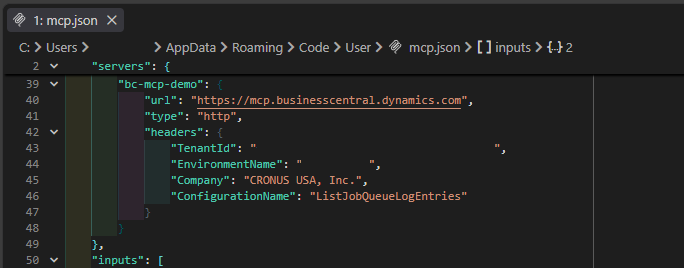
- Sign in with your Business Central user when prompted. No Entra app registration is needed.
- Confirm the tool list: exactly one tool, for the single API page you allowed.
-
In Copilot Chat, ask a question that needs that tool, and confirm that the answer comes from live data.
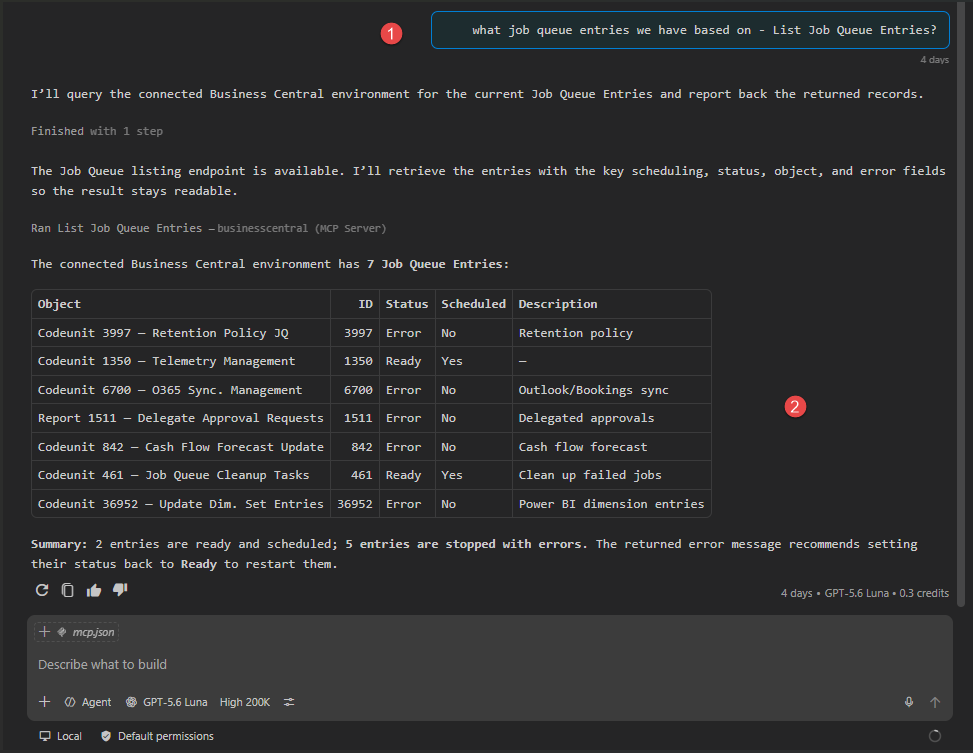
What is intentionally simple
- One existing, read-only configuration from the earlier post.
- No write operations, Entra application registration, or host-side code execution.
- No comparison across MCP hosts.
Risks/limits
- VS Code as an MCP host is in public preview for the Business Central MCP Server. Copilot Studio remains the fully supported host.
- Governance is shared across hosts, so a configuration mistake reaches every connected host.
- Telemetry can trust the host type only for Microsoft-provided hosts. For others, it has only the HTTP header, a weaker signal for auditing.
- Configuration drift, such as an API page removed by an app uninstall, still needs the validation feature on the configuration page.
- Promotion of a configuration across environments is a separate export and import step, not covered here.
Next iteration
- Export the configuration as JSON, import it into a second test environment, and repeat the VS Code connection there.
- Add a scoped configuration for one write scenario, test it, and then decide deliberately whether VS Code may ever call it.
- Add the Microsoft Learn MCP server next to the Business Central one, so one chat can reason about data and product documentation.
Closing note
VS Code support does not change what an MCP configuration can do. It changes where you can check it: in the editor a developer already uses, with the governance model untouched.