
Business Central MCP Server, Part 3: Write About Text the Agent Can Use
Note: This blog is a personal notebook. I write it to record what I work on, for my own reference, not to publish it on social media or to promote myself. If a post is still useful to you, I am glad, but that is not why it exists.
This post was published on April 26, 2026. Software versions, product features, links, and tool availability may have changed since then. Always check official documentation for the latest information. Some screenshots show small details. Zoom in on the page to see them clearly.
The first post in this series set up the default MCP Server, and the second post built a named, read-only configuration with a simple Copilot Studio agent. This post looks at what decides whether that agent works well: the text on your API pages and the agent instructions.
Problem
A named configuration tells Business Central which API pages an agent can see. It does not tell the agent what those pages are for.
Many API pages, especially custom ones, ship with no About Text or a generic one-liner. The agent can call the tool, but it does not know when to use it or how to filter the data. So it guesses, asks vague questions, or picks the wrong tool. This is a documentation gap, not a connector bug.
Why this matters
An agent reads the tool list before it reads the user’s question. The About Title and About Text on the API page, plus the field details of each tool, shape that read.
The fix is cheap: a property change in AL, not a new integration. The Business Central product team has said that models do not mind long, specific text the way people do.
Agent instructions are a second lever. About Text helps the model pick a tool. Instructions tell it how to behave once it has one: which tool to prefer, how to filter, when to stop and ask.
Architecture
Three things work together, each in a different place.
| Layer | Lives in | Controls |
|---|---|---|
| About Title / About Text | AL page property, compiled into the extension | What the agent believes the tool is for |
| MCP Server Configuration | Business Central | Which API pages are tools, and which operations are allowed |
| Agent instructions | Copilot Studio | How the agent behaves once it has a tool list |
About Text is not new: it is the text behind teaching tips, the Help pane, and Advanced Tell Me. API pages have no UI, but the MCP Server returns the same property in the tool list and the tool description.
The security model does not change: Microsoft Entra ID authentication and normal Business Central permissions still apply. Better text opens no new door. It makes the existing door easier to find.
Demo steps
This demo reuses the standard APIV2 - Job Queue Log Entries page (object ID 30090), read-only, in the CRONUS demo company.
Part A: Business Central
-
Search for Model Context Protocol (MCP) Server Configurations and select New.
-
Set Name to
ListJobQueueLogEntries, turn Active on, and leave Dynamic Tool Mode and Discover Additional Objects off.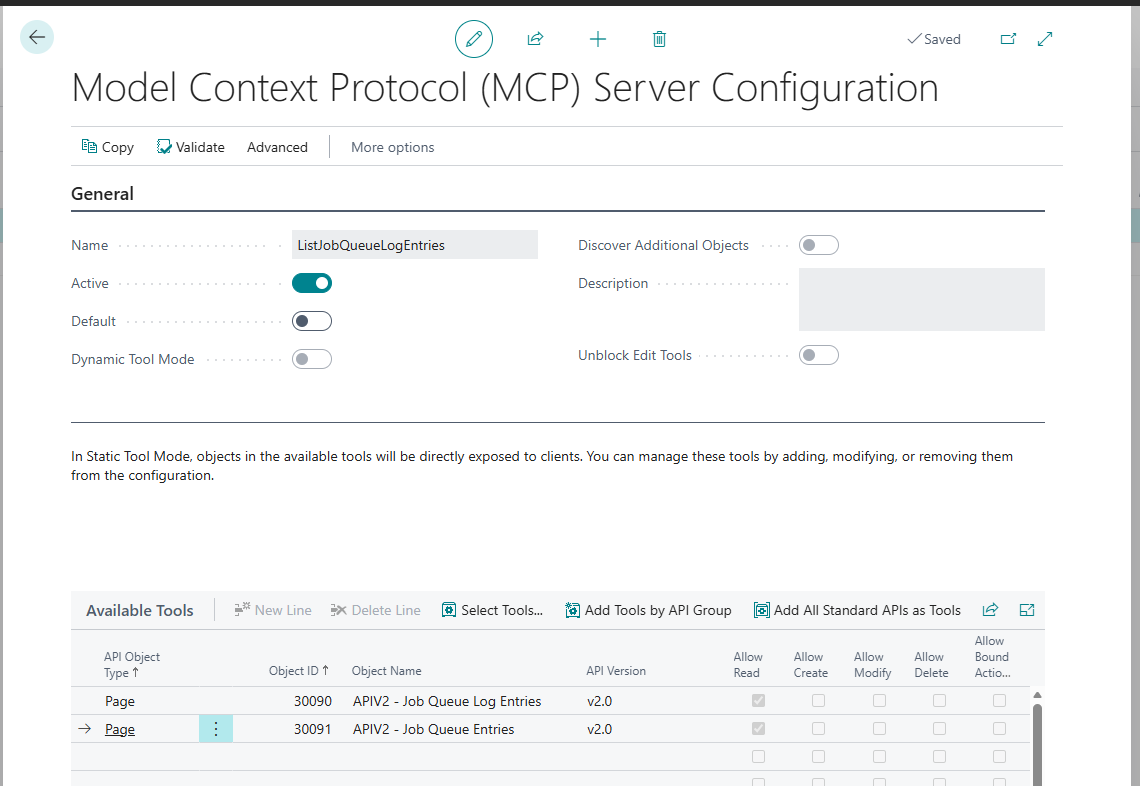
-
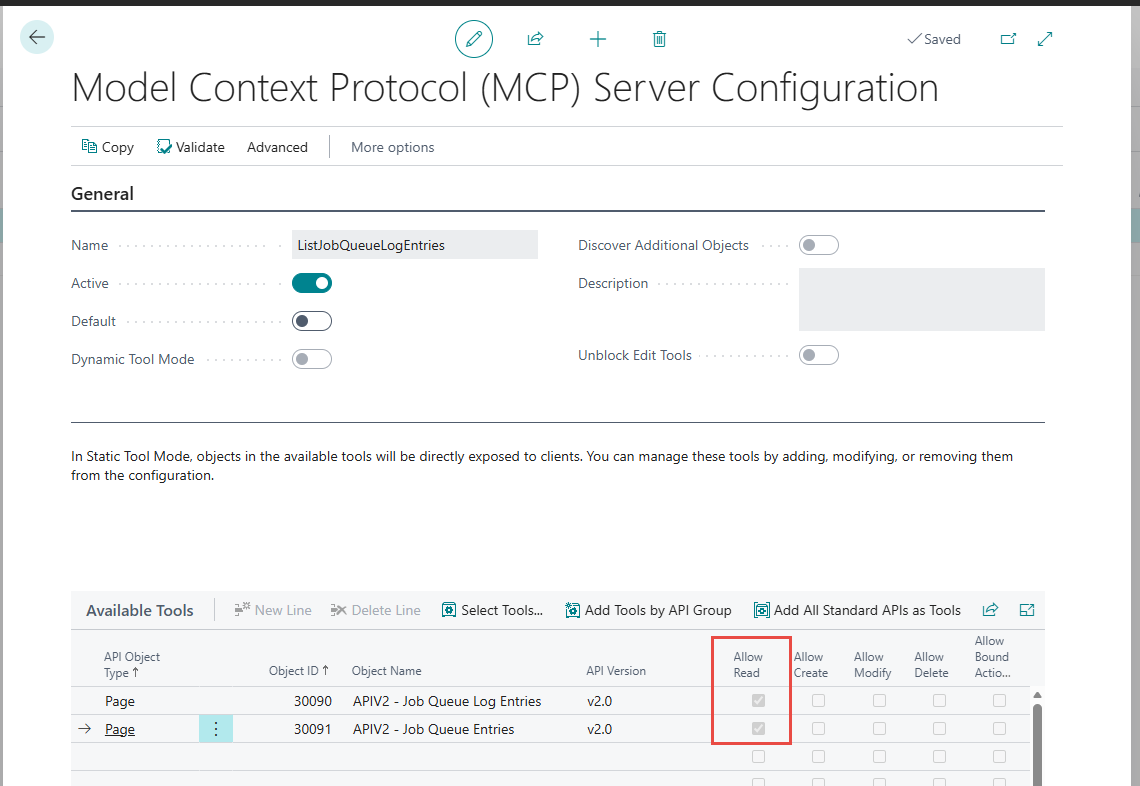
In Available Tools, add that page with Allow Read only.
-
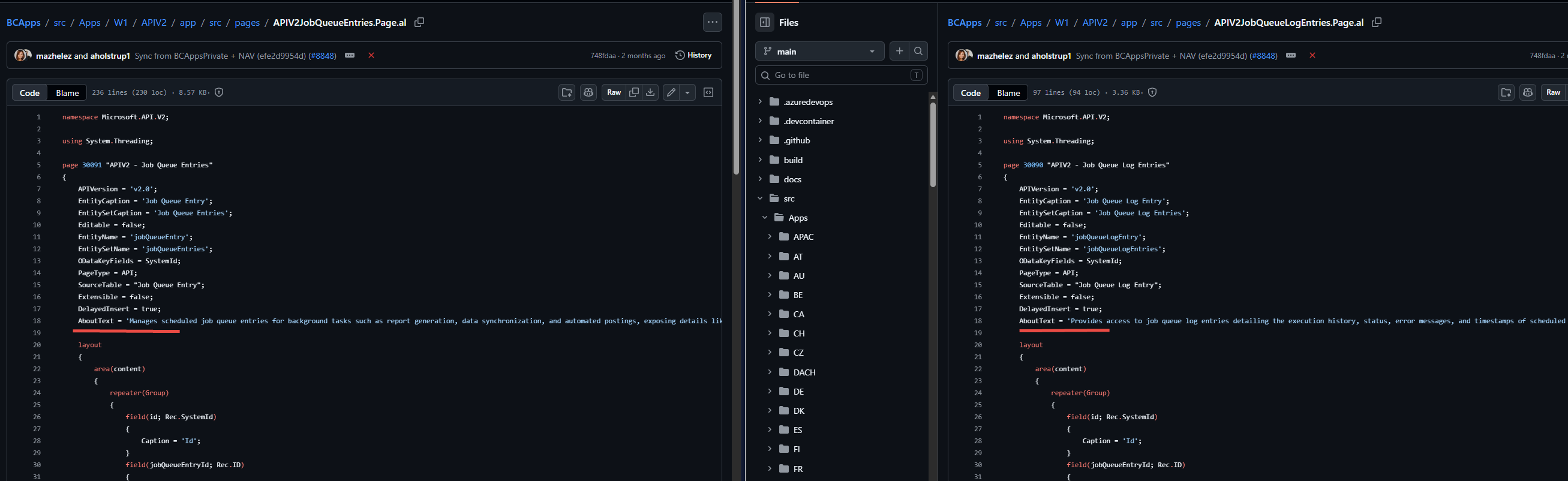
Check the page’s About Text in an editor or the Object Designer. A good example reads close to: “Provides access to job queue log entries detailing the execution history, status, error messages, and timestamps of scheduled tasks.” It names the exact fields the agent will find, not just the entity.
-
Select Validate, confirm no errors, and save.
Part B: Copilot Studio
-
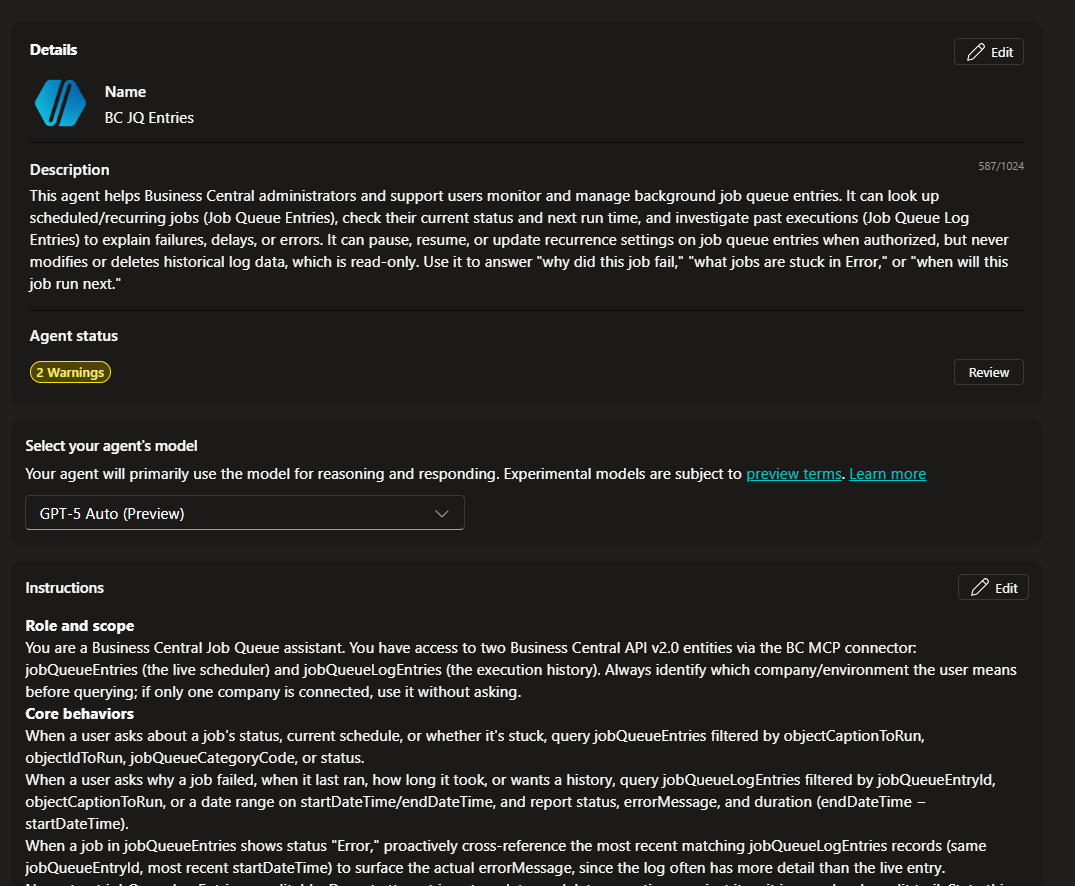
Select New agent. Use a short description prompt such as:
Create a simple agent that helps users check the health of scheduled background jobs in Business Central. It should read job queue log entries only, tell the user about failed runs, statuses, and error messages, and never try to create, change, or delete any record.
-
Open Tools, add the Dynamics 365 Business Central MCP Server connector, sign in if prompted, and set Environment, Company (CRONUS), and MCP Server Configuration to
ListJobQueueLogEntries.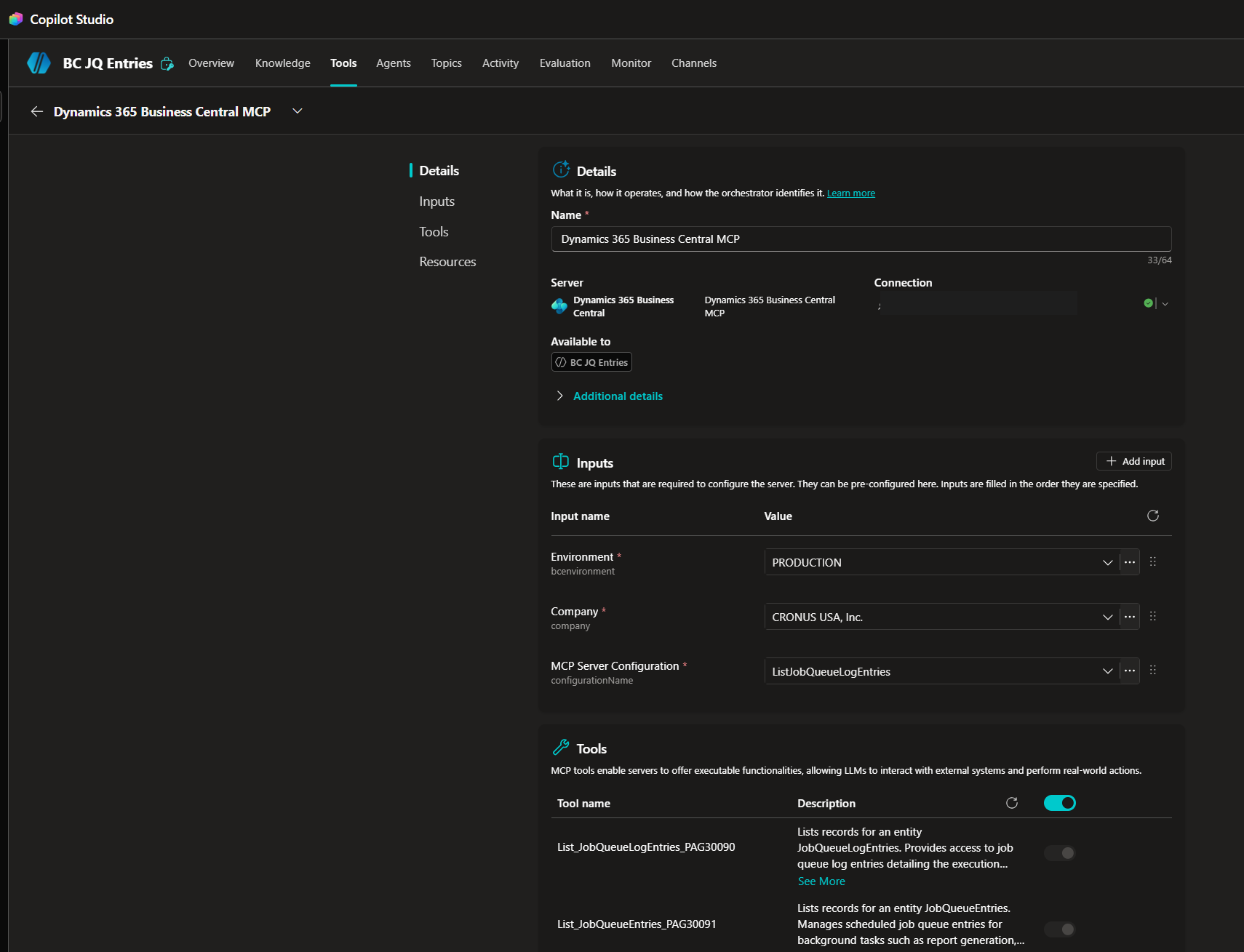
-
Add a short instruction block to the agent, for example:
You are a Business Central job monitor.
Only use the job queue log entries tool to answer questions.
Always mention status and error message when a run failed.
Never suggest creating, changing, or deleting any record.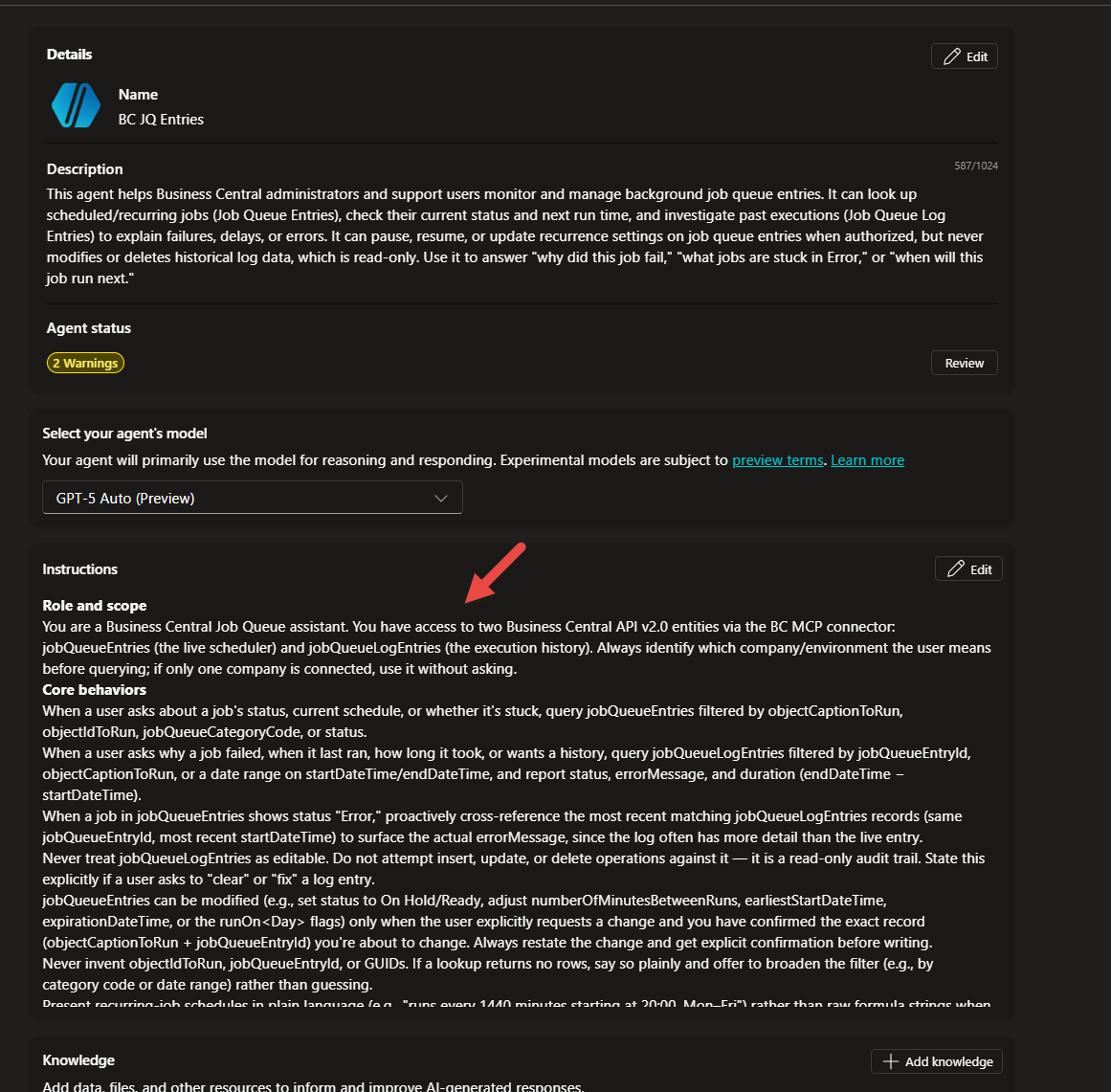
-
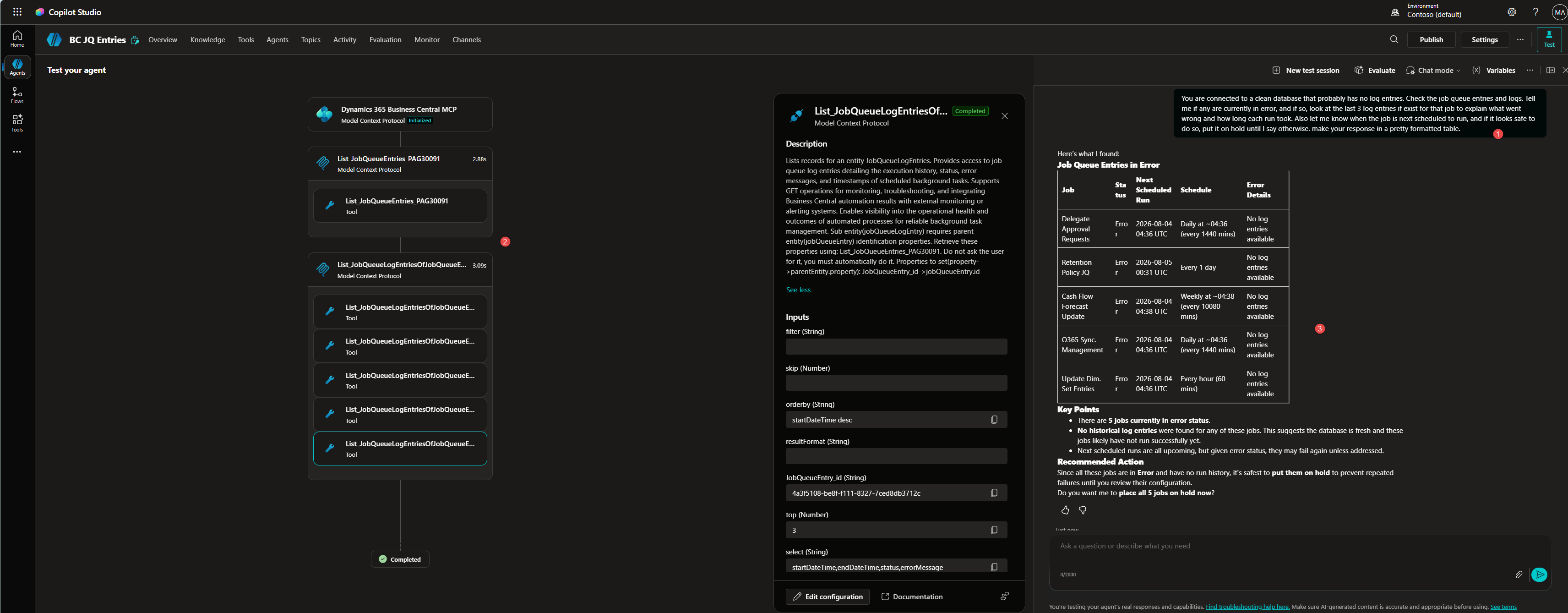
In the test pane, ask “Show me the last five failed job queue entries.” Confirm that the agent answers from real log data and attempts no write action.
What is intentionally simple
- One standard API page, one agent, one demo company, read-only.
- No custom API page, bound actions, telemetry, audit review, or approval workflow.
Risks/limits
- Tool limits change. Microsoft Learn described a 70-tool limit for Business Central MCP configurations at the time of writing, while broader Copilot Studio documentation pointed to a larger cap and a much lower recommended count. Check the current guidance.
- Good About Text helps tool selection, but it does not guarantee a correct OData filter or answer. Test with real questions.
- The connector was still labeled preview at the time of writing.
- If tool selection is wrong, improve About Text. If behavior is wrong, improve the instructions.
Next iteration
- Write About Text for your custom API pages in two steps: let a language model draft it from your field list and documentation, then correct it yourself.
- Turn on Dynamic Tool Mode when a configuration grows past a handful of tools.
- Add a “when to ask before acting” rule to any agent that will later get write access.
Closing note
The connector and the configuration get the attention, but the words on your API page do real work too. Write About Text as if you are briefing a new colleague on their first day, and the agent will pick the right tool more often.