
GitHub Copilot Canvases: A Shared Screen for You and the Agent
Note: This blog is a personal notebook. I write it to record what I work on, for my own reference, not to publish it on social media or to promote myself. If a post is still useful to you, I am glad, but that is not why it exists.
This post was published on September 02, 2026. Software versions, product features, links, and tool availability may have changed since then. Always check official documentation for the latest information. Some screenshots show small details. Zoom in on the page to see them clearly.
A canvas is a small interactive app in the right side panel of the GitHub Copilot app. You click buttons and edit fields in it, and the agent reads and changes the same data through actions that the canvas gives it. GitHub Docs
This post uses two canvases from my public repository mbaic/mb-copilot-release-sharer. Release Sharer turns a GitHub release into a customer email. Activity Sharer turns your GitHub activity into a standup note and checks the agent’s draft against your data. At the end, you build a small canvas for an AL change.
Problem
A Business Central partner ships a new version of a per-tenant extension (PTE), and somebody must tell the customer what changed. The release notes contain pull request numbers, @mentions, and developer wording. The customer needs a short email in plain sentences.
In a chat, this work is like chess by text message: every move is a new message, and nobody sees the board.
Why this matters
A missing fix or an invented feature in that email costs trust and support time.
A canvas puts the board on the table: the source, the options, and the result on one screen. You see the agent’s text next to its data and approve it before you copy it. GitHub describes the same idea: chat is good for intent and discussion, and the canvas gives you an artifact that you can inspect, steer, and verify. GitHub Docs
Architecture
What a canvas is made of
A canvas is a type of extension for the GitHub Copilot app: a small Node.js program that the app starts on your machine. GitHub Docs
| Part | What it does | In Release Sharer |
|---|---|---|
package.json |
Name, version, and entry file of the extension | release-sharer, entry extension.mjs |
| Entry file | Connects to the agent session and registers the canvas | extension.mjs calls joinSession and createCanvas |
| User interface | The page that you see in the side panel | ui/index.html with plain JavaScript |
| Agent actions | Named functions that the agent can call, each with an input schema | list_releases, get_release, get_release_prs, render_share, select_release, set_draft |
| State (optional) | A file that keeps your settings between sessions | Panel width, last format, last release per repository |
The app looks for extensions in two places: .github/extensions in a repository (project scope, for the whole team) and ~/.copilot/extensions on your machine (user scope). GitHub Docs
My two canvases use a third route, a plugin from a marketplace (see Build a Custom Marketplace and Plugins for the GitHub Copilot App). Each plugin also has a start skill that opens the canvas from a prompt.
Release Sharer
Release Sharer reads the releases of the current repository through the GitHub CLI (gh). You select a release and a format (plain text, Markdown, or email). Options remove pull request references and @mentions and add the contributors and a release link. The canvas also lists the merged pull requests behind the release.
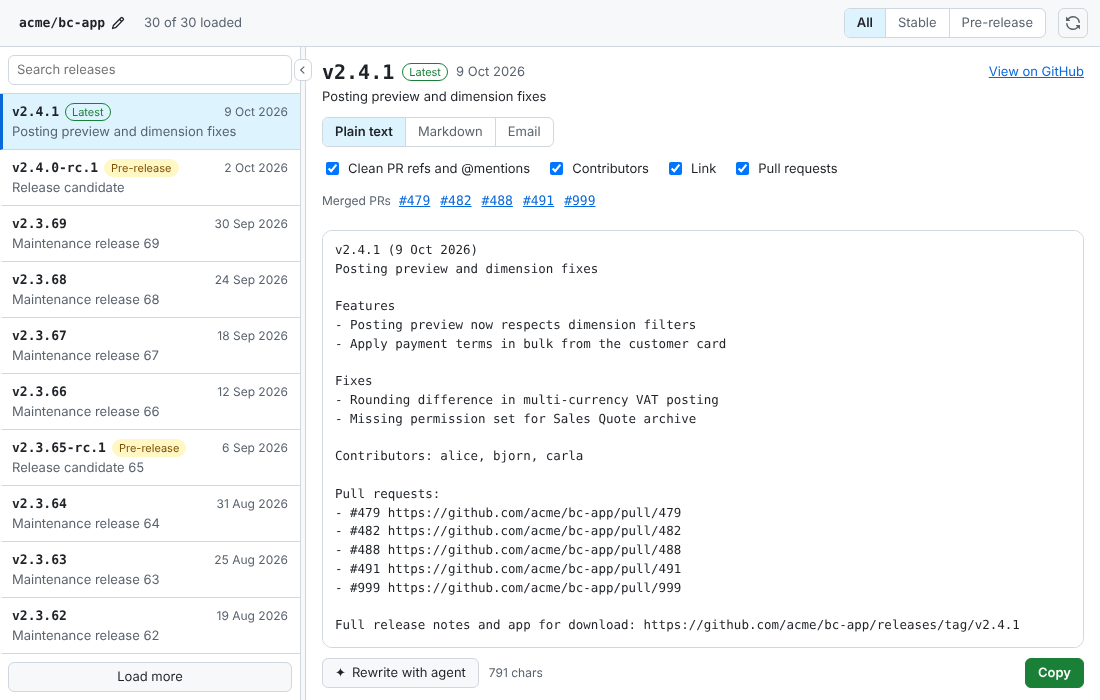
Sample data (acme/bc-app), shown in a browser through the repository’s development server, not inside the Copilot app.
The Rewrite with agent button shows how the canvas and the agent work together:
The agent also works without the buttons. Ask “which PRs are in v1.2.3?” in the chat, and the agent calls the canvas actions and gets structured data back, not a guess.
Activity Sharer
Activity Sharer shows what you merged, reviewed, and left open on GitHub for a period that you select, compared with the previous period of the same length. It reads only your own activity, through gh, and stores nothing.
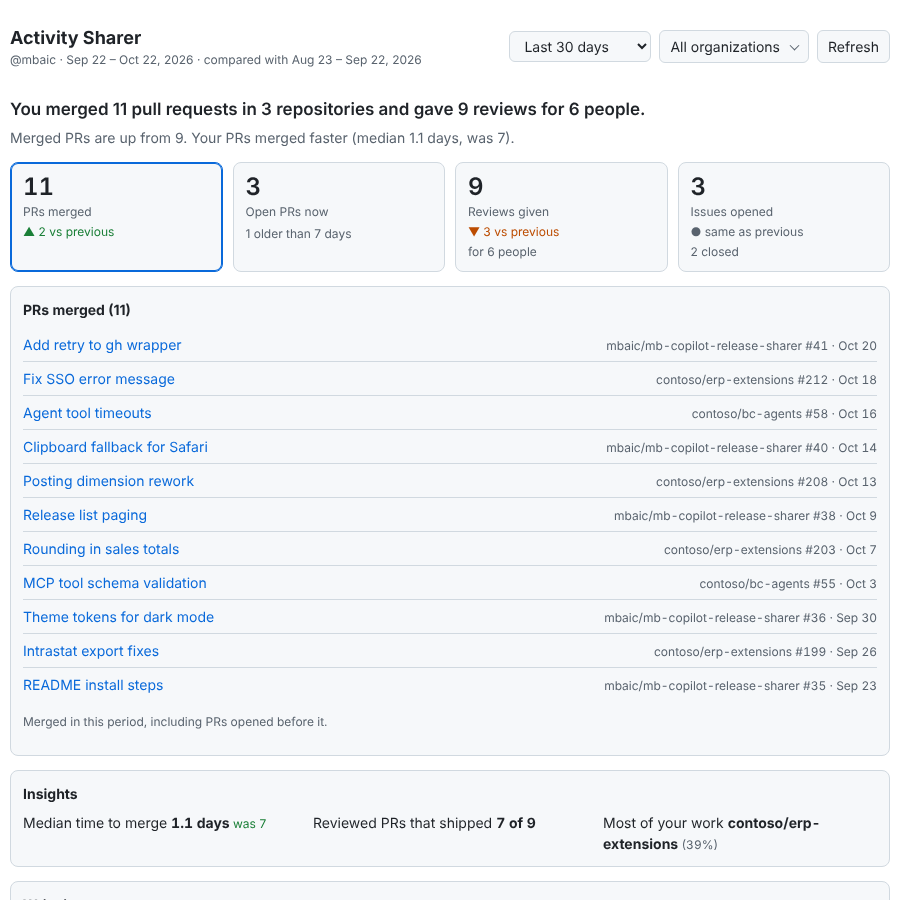
Sample data from the repository’s test fixture, shown through its development server.
The Write it up section shows a pattern that I recommend for any canvas that accepts agent text. The agent writes a standup or a client update from the canvas data. The canvas then checks every link, reference, date, and number in the draft against your items and marks each mismatch, such as the foreign link and the wrong review count below.
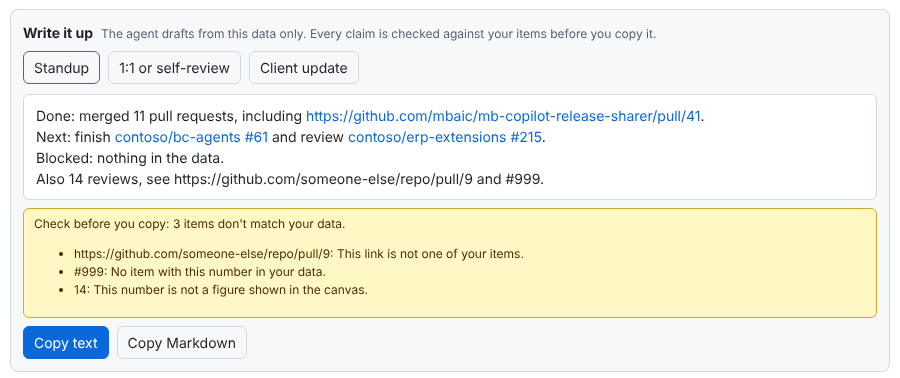
The check does not block the copy or change the draft. It shows which sentences need a second look, and the decision stays with you.
Demo steps
You need the GitHub Copilot app, available on all Copilot plans. On Copilot Business and Copilot Enterprise, the GitHub Copilot app policy must stay enabled, which is the default. GitHub Docs You also need the GitHub CLI, signed in with gh auth login.
Part 1: Try Release Sharer
- Read the repository source before you install it. The extension runs with your user permissions.
-
Add the marketplace and install the plugin:
copilot plugin marketplace add mbaic/mb-copilot-release-sharer copilot plugin install release-sharer@release-sharer copilot plugin list - In the GitHub Copilot app, start a session in a local clone of a repository that has published GitHub releases.
- Enter
/mb-release-sharer. The canvas opens in the right side panel. - Select a release, try the format tabs and the options, then click Rewrite with agent and select Customers.
- Compare the draft with the merged pull request list. Edit the draft and copy it.
If the canvas does not appear, start a new session or restart the app. The install guide has a troubleshooting table and a manual install route.
Part 2: Build a small AL review board
GitHub Copilot can generate a canvas for you with the /create-canvas command. GitHub Docs
- Open a test AL repository in the GitHub Copilot app and start a session.
-
Enter
/create-canvaswith a description of the controls and the agent actions:/create-canvas Build a board named AL review. Use columns: Planned, Review, Verified. Each card needs a requirement, test steps, and evidence. Let me edit and move cards. Let the agent add cards and update notes. Leave the final review decision to me. Use personal scope and example data only. Save the board state locally. Do not edit AL files, run tests, or call external services. - Select the personal (user) scope when the app asks. The agent builds the canvas in
~/.copilot/extensionsand opens it in the side panel. - Add a sample card: “Check a custom field on the Customer Card”.
- Move the card to Review and ask the agent to add a test note. Both changes must appear on the board.
- Close and reopen the canvas. The card and the note must still be there.
If a control is wrong, ask the agent for a specific change, such as “add a due date field to each card”.
What is intentionally simple
- One canvas, one job. Release Sharer shares a release. It does not publish one.
- Read-only GitHub access. Both canvases only read, through your
ghlogin. - No Business Central connection. No Business Central API, no MCP server, and no AL object change.
- Manual evidence. The review board stores notes. It does not run AL tests.
Risks and limits
- Not yet verified in the app. Both plugins are at version 0.2.2, untagged, and tested against sample data. Skill discovery and the agent round trip are still open in the repository’s findings list.
- A canvas is local code. It can run code on your machine and call external APIs. GitHub Blog Read the code of a generated or downloaded canvas, and check its dependencies.
- A prompt is not a security control. “Do not edit AL files” in Part 2 is only a request. Check the generated code, and keep the agent tool permissions narrow. GitHub Docs
- Agent text needs a review. The evidence check finds wrong links and numbers, not a wrong statement that uses correct numbers.
- A Verified card is not a test result. A person moves the card, so it proves no AL test.
Next iteration
- Verify both plugins in the app, record the results in the findings list, and tag version 0.2.2.
- Replace the sample screenshots with screenshots from the app.
- Link each review board card to the real pipeline test result.
- After a team review, move the review board to
.github/extensionsfor the whole team.
Closing note
A canvas is useful when you must check the agent’s work against data. Put the data, the agent’s draft, and your decision on one screen, and give the agent actions with clear names. The code for both canvases is public in mbaic/mb-copilot-release-sharer. Read it, criticize it, and use the parts that fit.